
Instant business email translation is defined as real-time, in-workflow conversion of email content between languages without leaving your email client. Tools like BeLikeNative, Lara Translate, BlueTweak, and Translate.email now make this possible directly inside Gmail and Outlook. The need is real: business professionals spend an average of 4.1 hours per week editing emails, with 62% identifying tone rewriting as the hardest part. When you add a language barrier on top of that, the cost in time and clarity compounds fast. The right automatic email translation service cuts both problems at once.
What are the best tools to translate business emails instantly?
The best tools to translate business emails instantly are AI-powered extensions and platforms that work inside your existing email client. They detect language automatically, translate in context, and preserve the sender's register without requiring you to copy text into a separate app.
Here is how the leading options compare:
| Tool | Integration | Languages | Context-aware | Security | Best for |
|---|---|---|---|---|---|
| BeLikeNative | Gmail, Chrome | 50+ | Yes | Standard browser | Individual professionals |
| Lara Translate | Gmail, Chrome | 100+ | Yes | Standard browser | Tone-sensitive business email |
| BlueTweak | Email, chat, voice | 100+ | Yes | Enterprise-grade | Contact centers, support teams |
| Translate.email | Standalone email service | 100+ | Partial | Standard | Automated forwarding workflows |
| Language IO | Gmail, Chrome | 100+ | Yes | Encrypted, enterprise | Regulated industries |
BeLikeNative works as a Chrome extension that rewrites and translates selected text directly in your compose window. Lara Translate integrates with Gmail and preserves the sender's register, idioms, and context, which makes it noticeably better than Gmail's built-in word-by-word translator. BlueTweak targets contact centers and translates in real time across email, chat, and voice, keeping original and translated content on the same interaction timeline. Translate.email handles bidirectional message conversion with automatic forwarding, so replies land in the right language without any manual steps.
Pro Tip: For sensitive vendor or client communications, choose an enterprise tool like BlueTweak or Language IO over a standard browser extension. Standard extensions send your email content to external servers, which creates data exposure risk.

Security is the factor most professionals overlook when picking a business email translator. Browser-based tools are convenient, but they route your content through external systems. Enterprise solutions keep data within controlled, encrypted environments. If your emails contain financial data, legal terms, or personal information, that distinction matters.
How to set up instant email translation for your workflow
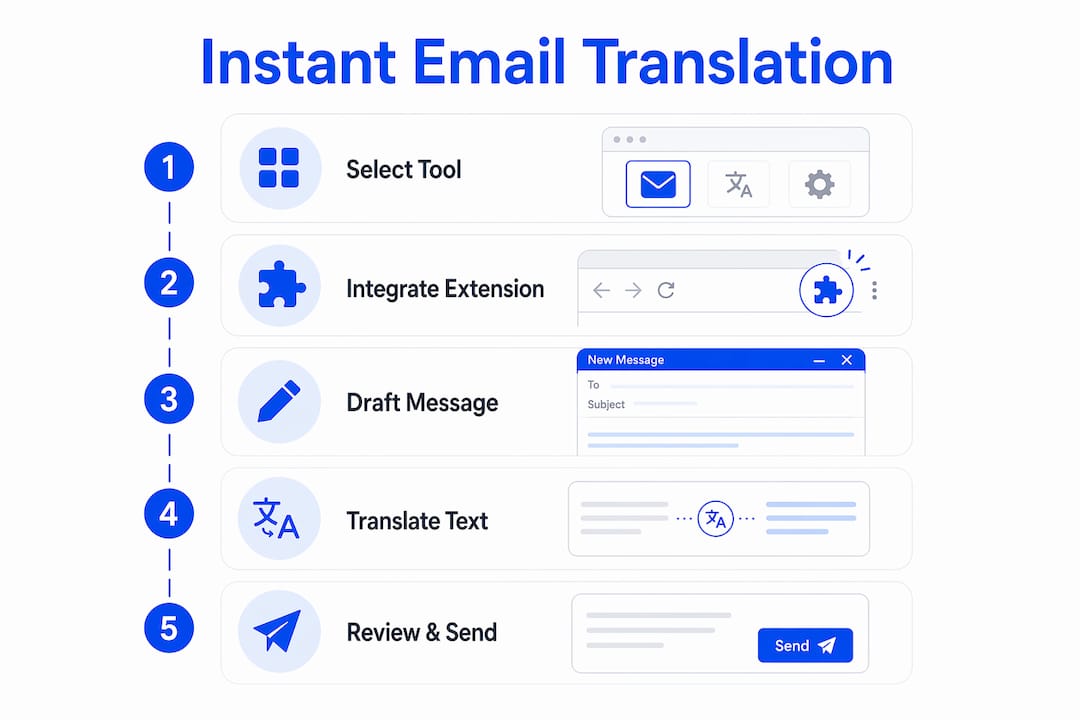
Setting up a fast email translation workflow takes under 15 minutes for most tools. Follow these steps to get running with Lara Translate or BeLikeNative in Gmail.
-
Check your browser. Both Lara Translate and BeLikeNative require Google Chrome or a Chromium-based browser. Open Chrome and confirm you are running version 110 or later.
-
Install the extension. Go to the Chrome Web Store, search for your chosen tool, and click "Add to Chrome." Grant the permissions it requests for Gmail access.
-
Sign in and set your default languages. Open the extension settings. Set your primary language (the language you write in) and your target language (the language you want to translate into). You can change this per email if needed.
-
Open Gmail and compose or open an email. You will see a new button or icon in your toolbar. In BeLikeNative, it appears inside the compose window. In Lara Translate, it appears as a sidebar panel.
-
Select the text you want to translate. Highlight a specific paragraph or sentence rather than the entire email body. Selective text highlighting produces more accurate, contextually appropriate translations than selecting everything at once.
-
Click translate or rewrite. The tool replaces or suggests a translation inline. Review the output before sending.
-
Adjust tone if needed. BeLikeNative includes a tone selector (formal, friendly, concise). Use it to match the register of your recipient's culture and communication style.
-
Save your settings as a profile. If you regularly email contacts in Spanish, Japanese, or German, save language pairs as profiles. This removes the setup step from every session.
Pro Tip: Keep the original email text in a draft or note until you confirm the translated version reads correctly. This gives you a clean reference for quality checks, especially on high-stakes client emails.
For teams using BlueTweak in a contact center environment, the setup process runs through an admin dashboard rather than individual browser installs. Your IT team configures the integration at the platform level, which means every agent gets translation automatically without personal setup.
How to maintain professional tone when you translate emails quickly
Professional tone is the hardest thing to preserve when you translate emails quickly. Word-by-word translation tools flatten nuance, convert idioms literally, and produce text that reads as robotic or off-brand.
Common machine translation mistakes include literal rendering of idioms and mismatched register, both of which harm brand perception. A phrase like "let's circle back" becomes nonsensical in many languages when translated word for word. Context-aware tools like Lara Translate solve this by analyzing the full sentence structure before generating output.
Here are the core practices that protect tone quality:
- Use context-aware tools. Choose a translator that reads the full sentence, not just individual words. Lara Translate and BeLikeNative both do this by default.
- Highlight paragraphs, not full emails. Smaller selections give the AI more focused context. The output is tighter and more accurate.
- Use the tone selector. BeLikeNative lets you specify formal, friendly, or concise. Match the tone to your recipient's culture and your relationship with them.
- Review before sending. Read the translated output aloud in your head. If a sentence sounds unnatural, reselect the text and retry with a shorter highlight.
- Avoid translating subject lines automatically. Subject lines are short and high-stakes. Translate them manually or review AI output carefully, since short strings lose context fastest.
"Relying on word-by-word conversion in email translation leads to awkward phrasing and loss of intended register, impacting brand perception negatively." — Lara Translate
A 2025 Grammarly report confirmed that AI tools reduce rewriting time by instantly suggesting tone-appropriate phrasing. The implication is clear: the right tool does not just translate, it also improves the email's clarity in the target language.
Pro Tip: After translating, paste the output into a reverse translation tool to check for meaning drift. If the back-translation does not match your original intent, refine the source text and retranslate.
What are the security risks of instant email translation?
Security is the most underestimated risk in professional email translation. Browser-based translators send your email content to external servers for processing, which means confidential data leaves your controlled environment.
This matters most for three categories of email: vendor contracts, client negotiations, and employee communications. All three regularly contain information that is legally sensitive or competitively valuable.
Do this to protect your data:
- Use enterprise-grade tools like BlueTweak or Language IO for any email containing financial figures, legal language, or personal data.
- Confirm that your chosen tool offers end-to-end encryption and keeps data within your organization's network.
- Review your tool's privacy policy for explicit statements about data retention and third-party sharing.
- Avoid translating emails that contain passwords, access credentials, or regulatory information through standard browser extensions.
Avoid this:
- Do not use free, consumer-grade browser extensions for business-critical communications.
- Do not assume that "HTTPS" on a translation tool means your data is private. HTTPS protects data in transit, not data stored on the provider's servers.
Encryption and secure environments are the only reliable way to prevent potential data capture by third-party systems. Language IO, for example, is built specifically for regulated industries and keeps all translation processing within a secure, compliant architecture.
Common problems with real-time email translation (and how to fix them)
Even the best email translation tools run into issues. Knowing the common problems saves you time and frustration.
-
Translation button not appearing. Refresh Gmail or Outlook. If the button still does not show, disable other Chrome extensions one at a time to find a conflict. Most translation tools conflict with ad blockers or other AI writing tools.
-
Awkward or robotic phrasing in output. This usually means the selected text was too long or lacked context. Deselect, highlight a single paragraph, and retry.
-
Wrong language detected. Override the auto-detect setting manually. Set the source language explicitly in the extension settings for that session.
-
Tone mismatch in formal emails. Switch the tone selector to "formal" if available. If your tool does not have a tone selector, add a brief instruction in the tool's prompt field: "Translate in a formal business register."
-
Translation changes the meaning of technical terms. Technical vocabulary often does not translate directly. Flag industry-specific terms before translating and replace them manually after the AI output is generated.
| Problem | Quick fix | When to escalate |
|---|---|---|
| Button not appearing | Refresh browser, check extension conflicts | Contact tool support after 2 attempts |
| Robotic phrasing | Reselect shorter text, retry | Switch to a context-aware tool |
| Wrong language detected | Set source language manually | Review tool's language support list |
| Tone mismatch | Use tone selector or add prompt instruction | Consider professional translation for high-stakes emails |
| Technical term errors | Replace manually post-translation | Use a specialized translation tool for your industry |
For high-stakes communications where errors carry real consequences, automated translation should be a first draft, not a final product. Use it to get 80% of the way there, then review the output yourself.
Key takeaways
Translating business emails instantly requires the right tool, a focused workflow, and a quick human review to protect tone and accuracy.
| Point | Details |
|---|---|
| Choose context-aware tools | BeLikeNative and Lara Translate preserve tone and idioms better than word-by-word translators. |
| Highlight selectively | Translating paragraphs instead of full emails produces more accurate, natural output. |
| Prioritize security | Use encrypted enterprise tools for emails containing sensitive financial, legal, or personal data. |
| Review before sending | AI translation is a strong first draft; a quick human review catches tone and meaning errors. |
| Match tone to recipient | Use tone selectors or manual prompts to align translated text with your recipient's culture and expectations. |
Why I think most professionals are using email translation wrong
I have watched teams adopt translation tools and immediately set them to "translate entire email, auto-send." That is the wrong approach, and it shows in the responses they get. Recipients notice when an email sounds off. They may not know it was machine-translated, but they feel the distance in the phrasing.
The professionals who get the most out of instant translation treat it as a drafting tool, not a final step. They translate, read, adjust tone, and then send. That extra 90 seconds of review is the difference between an email that builds trust and one that creates confusion.
I also think people underestimate how much the tool choice matters. Using Gmail's built-in translator for a formal vendor negotiation is like using autocorrect to write a legal brief. It gets you words on the page, but the register is wrong. Lara Translate and BeLikeNative exist precisely because the built-in options are not good enough for professional communication.
The security piece is where I see the biggest blind spot. Most professionals assume that because a tool is popular, it is safe. That is not how data privacy works. Before you translate a single client email through a browser extension, check whether that tool's privacy policy explicitly states that your data is not stored or shared. If it does not say that clearly, assume the worst.
The bottom line: instant email translation works well when you pick the right tool, use it on focused text, and spend a moment reviewing the output. Skip any of those three steps and you are introducing risk, not removing it.
— Poul
Talk to anyone, anywhere, with Oralingo
If you are handling multilingual communication beyond email, including live chats, customer conversations, and team messaging, Oralingo gives you real-time translation across all of them. Oralingo translates messages before they are displayed, so conversations flow naturally without interruption. It supports over 100 languages with a 99% accuracy rate and uses end-to-end encryption to keep every conversation private.
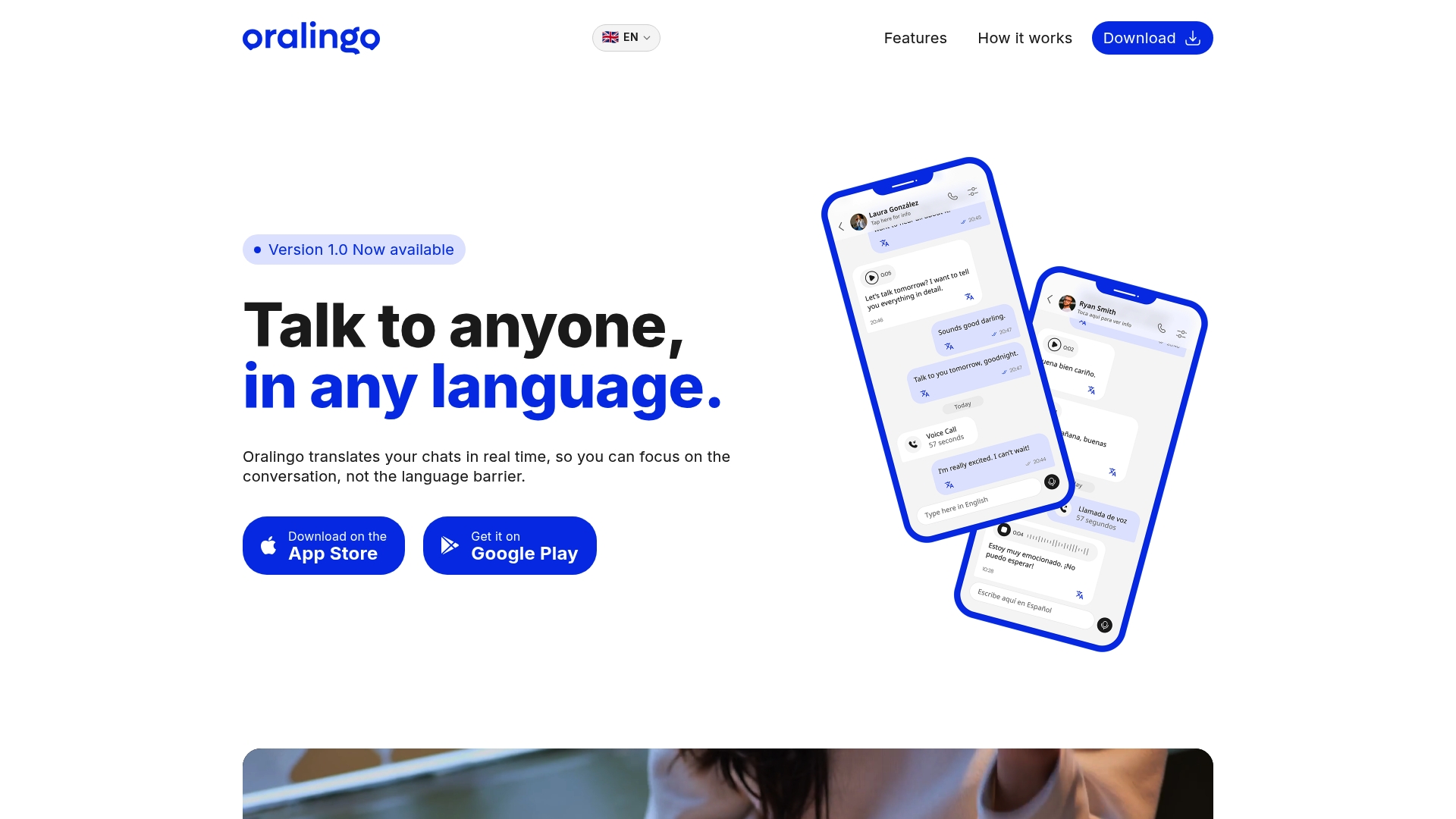
Whether you are coordinating with international partners or supporting customers in their native language, Oralingo removes the language barrier from the equation entirely. You just focus on the conversation.
FAQ
What does it mean to translate business emails instantly?
Instant business email translation means converting email content between languages in real time, directly inside your email client, without switching to a separate app. Tools like BeLikeNative and Lara Translate do this inside Gmail and Outlook.
Which tool is best for professional email translation?
Lara Translate and BeLikeNative are the strongest options for individual professionals because both preserve tone and context. BlueTweak is the best choice for contact center teams needing enterprise-grade, multi-channel translation.
Is it safe to use browser extensions to translate business emails?
Standard browser extensions send your email content to external servers, which creates data exposure risk. For sensitive communications, use an encrypted enterprise tool like Language IO or BlueTweak that keeps data within a secure, controlled environment.
How do I keep the right tone when translating emails quickly?
Use a context-aware tool, highlight specific paragraphs rather than the full email, and apply a tone selector if available. Always read the translated output before sending to catch any phrasing that sounds unnatural or off-register.
When should I use a professional translator instead of an AI tool?
Use a professional translator for legally binding contracts, regulatory filings, or any communication where a mistranslation carries financial or legal consequences. AI tools are reliable for day-to-day business correspondence but are best treated as a strong first draft for high-stakes content.