
Pick the accent your audience already expects, and lean toward clarity over character whenever the two pull in different directions. Authenticity matters most when you're building rapport with a specific region; clarity matters most when you're talking to a broad or mixed audience. Once you've picked a direction, the checklist and workflow below will get you there in minutes.
TL;DR:
- Using a British accent in live calls requires ensuring the specific speech engine supports the "English (United Kingdom)" tag and that regional voice packs are installed.
- For clarity during customer support or training, slowing the speech slightly and maintaining a neutral pitch enhances understanding more than adopting a regional accent.
- Real-time accent translation depends on a stable wired internet connection and reliable hardware, with latency caused by CPU overload or packet loss potentially disrupting the flow.
- Selecting an accent should prioritize audience comprehension and expectations over character or brand style, especially when multiple regions or language skills are involved.
- When an accent option fails to appear, checking device voice packs, browser permissions, and platform compatibility often resolves the issue without requiring software fixes.
Table of Contents
- Which regional accents can you choose from in translation and TTS tools?
- How do you pick the right accent for your situation?
- What's the step-by-step process for applying an accent?
- Setting up live accent translation without lag
- Why isn't your accent option showing up, and how do you fix it?
- Balancing clarity and identity in real conversation
- Sources
Which regional accents can you choose from in translation and TTS tools?
Most accent-translation and text-to-speech tools organize voices around a handful of familiar labels, and knowing what each one actually signals saves you from picking blind. General American is the default "neutral" US voice, flatter and more broadcast-style than a regional accent. Southern US carries a slower cadence and softened vowels. Received Pronunciation (RP), often labeled "English (United Kingdom)," is the crisp, BBC-adjacent UK standard rather than a regional British accent. Australian and Irish each bring distinct vowel shifts and rhythm that most listeners recognize within a sentence or two.
Here's the part people miss: accent and dialect aren't the same thing. Accent is pronunciation, how the words sound. Dialect includes vocabulary and idiom, which words get used at all. Some tools change only the sound; better ones also offer lexical substitution.
- General American: neutral, minimal regional markers, good for global audiences
- Southern US: warmer tone, slower pace, common in customer-facing US content
- Received Pronunciation (UK): formal, precise, often chosen for training or corporate content
- Australian: rising intonation on statements, distinct vowel sounds
- Irish: melodic rhythm, softer consonants
A tool with real accent variety will also flag vocabulary swaps, like changing "trunk" to "boot" for a UK audience, so the script matches the voice instead of fighting it.
How do you pick the right accent for your situation?
Start with who's listening, not what sounds impressive, especially when using AI voice agents that answer the phone to ensure clear communication. Comprehension beats character almost every time, especially when your audience spans multiple regions or English proficiency levels.
Run through these criteria in order:
- Audience comprehension: Will this accent be instantly clear to the people hearing it, or will it slow them down?
- Channel: A live support call demands more clarity tolerance than a pre-recorded training video you can re-record.
- Tone and brand: Does the accent match how your brand or your personal voice actually sounds elsewhere?
- Listener expectations: If your audience already expects a UK voice for UK content, don't surprise them with General American.
- Platform limits: Confirm the accent you want is actually supported before you build a whole workflow around it.
Secondary checks matter too. Watch for cultural sensitivity, an accent used carelessly can read as mimicry rather than respect, and check any industry rules around scripted disclosures if you work in a regulated space like finance or healthcare.
Pro Tip: Before committing to an accent for a customer-facing project, test it with a small group of people who match your actual audience. What sounds "clear" to you might not land the same way for someone else.
What's the step-by-step process for applying an accent?
The core workflow is the same across most accent-translation and TTS tools, whether you're working with text, uploaded audio, or pre-recorded video.
- Prepare and upload your content. Paste in text, upload an audio file, or drop in a video clip. Clean up filler words and awkward phrasing now, since the tool will read exactly what you give it.
- Select the region and voice persona, then adjust parameters. Choose your target accent, pick a specific voice within that accent (tools often offer several), and set speed and pitch.
- Preview, edit, and export or apply live. Listen to the full output before you publish or go live. Fix errors, then export the file or route it into your live call.
For text and pre-recorded audio, you have room to iterate. For live video, you'll typically be applying the accent in real time through a virtual microphone feeding a conferencing app.
Listen closely for two common failure points: lexicon mismatches (an American idiom in a British-accented voice sounds off) and contraction errors (some engines mangle "wouldn't've" or regional contractions). Fix these in the source script, not after the fact.
On parameters: slow the speed slightly and keep pitch neutral when clarity is the priority, like customer support or training content. Push toward a more distinct regional persona only when local color matters more than universal comprehension, like marketing content aimed squarely at one region.
Setting up live accent translation without lag
Real-time accent conversion during calls works through a virtual microphone, software that intercepts your voice, processes it through the accent engine, and routes the output into your conferencing app as if it were a normal mic input. It's the standard architecture behind most live accent conversion tools, and it only works well when the pipeline behind it is solid.
A few things determine whether that pipeline holds up:
- Stable internet matters more than raw speed. A wired connection beats spotty Wi-Fi even at lower bandwidth.
- Wired headsets reduce the jitter and packet loss that wireless audio introduces.
- Browser and OS support varies. Chrome generally handles microphone-based translation and system TTS well; Safari and Edge support is more limited, so check before a live session, not during one.
Latency tends to spike when your CPU is overloaded, your connection drops packets, or too many audio processes compete for the same input. If a live session starts lagging and a quick microphone or app restart doesn't fix it, switch to pre-recorded output instead. A slightly delayed but clean file beats a live call that keeps cutting out.
Why isn't your accent option showing up, and how do you fix it?
Most missing-accent problems trace back to the device, not the app. Work through this sequence before you assume something's broken.
- Check for voice packs. Many device speech engines require manually installed regional voice packs before an accent option will actually work, even if it appears selectable in the app.
- Select an explicit regional tag. Choosing something like "English (United Kingdom)" instead of generic "English" often forces the system to load a different voice dataset entirely.
- Check browser permissions. Confirm microphone access is enabled, and remember that Chrome, Safari, and Edge don't all support the same speech features.
- Check the app listing. Device compatibility and voice-mode features sometimes vary by platform, so a quick look at the app's store page can save you troubleshooting time.
- Switch modes if needed. If live processing keeps failing, export the audio and play it back locally as a fallback while you sort out the live setup.
One extra note: what looks like a bug is very often just a missing OS-level voice dataset, not a flaw in the tool itself.
Balancing clarity and identity in real conversation
The instinct to pick the "most native-sounding" accent option is usually the wrong instinct. What actually matters is whether the person on the other end understands you the first time, without asking you to repeat yourself. That's a different goal than sounding like a news anchor from a specific city, and conflating the two leads people to over-optimize for polish instead of comprehension.
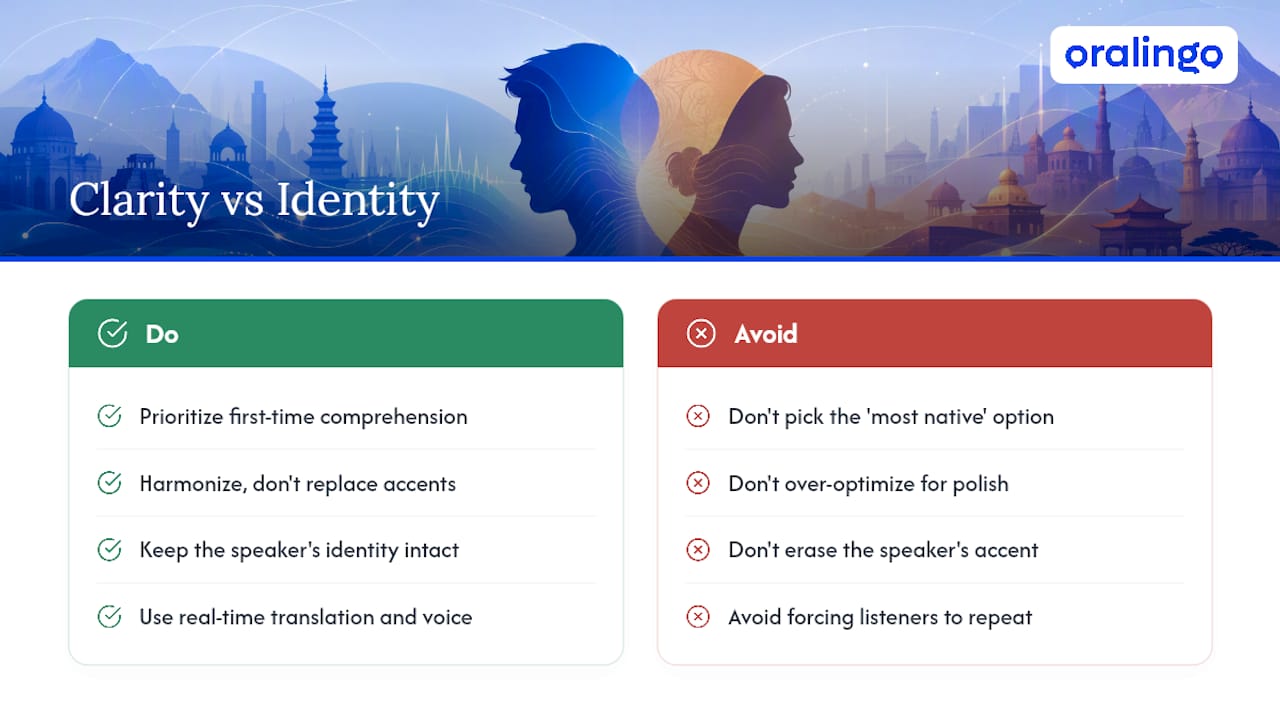
The better framing, and the one gaining traction in serious accent tools, is harmonization rather than replacement: keep the speaker's identity intact while smoothing the parts that genuinely cause confusion. That's a very different goal from erasing an accent entirely, and it respects the person talking as much as the person listening.
This is where Oralingo's approach makes sense for everyday conversations. Oralingo translates messages before they're displayed, so both sides read naturally instead of parsing a rough draft, and its hands-free voice mode lets you speak instead of type when you're mid-conversation. With support for many languages and high accuracy, plus end-to-end encryption on every conversation, it's built for people who need real-time clarity without sacrificing privacy or their own voice. If you're managing conversations across accents and languages regularly, see how Oralingo handles it.
— Poul
Sources
- Translate by speech - Google Translate Help
- How to change Google Translate voice (AuraScience)
- Accent harmonizer features (Omind AI)