
Tap a message and choose Translate, or turn on Telegram's Translate button in Settings if you don't see the option yet. For chats that need translation all the time, Telegram Premium can translate an entire conversation automatically, while Telegram Web extensions and dedicated apps like Oralingo cover the gaps Telegram itself leaves open.
TL;DR:
- Telegram's default message translation requires enabling the feature in settings and works best with longer messages that provide enough text for language detection.
- Premium offers auto-translation in real time for chats and groups but excludes secret chats due to end-to-end encryption, requiring specific thresholds to activate.
- Browser extensions for Telegram Web provide in-place translation but depend on unofficial tools that can be limited by rate-limiting and privacy concerns.
- Third-party apps and tools often route messages through external servers, posing privacy risks, especially for sensitive or professional conversations.
- For highly confidential or complex translations, dedicated encrypted solutions like Oralingo translate messages before display, ensuring privacy and preserving formatting.
Table of Contents
- How to Translate a Single Message in Telegram (Mobile and Desktop)
- Auto-Translate and Real-Time Chat Translation With Telegram Premium: What It Does and Its Limits
- Using Telegram Web: Browser Extensions That Add Live Translation
- Third-Party Apps and Workarounds: Convenience vs. Privacy and Reliability
- Which Method Should You Pick: Built-In, Extension, App, or Encrypted Translator?
- How to Translate Messages in Telegram Secret Chats
- Offline Translation Options and Their Availability With Telegram
- Tips to Improve Translation Quality
- Why We Recommend a Dedicated, Encrypted Solution for Sensitive Conversations
- Oralingo: Secure Real-Time Chat Translation
- Sources
How to Translate a Single Message in Telegram (Mobile and Desktop)
The Translate button doesn't always show up out of the box. You have to flip a switch first, and once you do, translating any message takes about two seconds.
Here's the setup, and it's the same logic on Android, iPhone, and desktop, just with different menus:
- Turn it on: Go to Settings → Language, then toggle Show Translate button.
- On mobile: Tap and hold a message, then select Translate from the menu that pops up.
- On desktop: Right-click the message, or open the three-dot menu, and choose Translate.
- To close it: Tap the translated bubble again, or hit the small "show original" option that appears under it.
- To skip certain languages: In the same Language settings, you can list languages you don't want auto-translated. This matters if you're bilingual and Telegram keeps offering to translate a language you already understand fine.
If the Translate option refuses to appear no matter what you tap, check two things first. One, confirm you're running a current version of the app. Two, know that Telegram doesn't translate every short message. Android Police's walkthrough confirms this basic toggle path works across devices, but a single two-word message often won't trigger translation because Telegram's language detection needs enough text to make a confident call.
Auto-Translate and Real-Time Chat Translation With Telegram Premium: What It Does and Its Limits
Telegram Premium adds a feature that goes further than translating one bubble at a time: it can translate an entire chat automatically, so every incoming message shows up in your language without you tapping anything.
Here's what that actually covers, according to Telegram's own API documentation:
- Real-time translation works in private chats, groups, and channels.
- Premium users get preserved formatting, meaning bold text, italics, and links stay intact after translation instead of turning into plain text.
- Secret Chats are excluded entirely, since their end-to-end encrypted design blocks Telegram's servers from reading (and therefore translating) the content.
There's a technical reason auto-translate sometimes stays quiet even in Premium: Telegram only triggers its detection popup once a conversation clears specific thresholds. Per Telegram's documentation, the system needs to process at least 8 messages, hit a 35% detection rate for a foreign language, and see that language make up 65% of detected messages before it assumes you want ongoing translation. A short exchange or a chat that mixes three languages casually may never cross that line.
For a group chat with a business partner overseas or a family thread that runs half in Spanish, half in English, this saves real time. For a five-message exchange, it's overkill, and the free per-message Translate button does the job just as well.
Using Telegram Web: Browser Extensions That Add Live Translation
Telegram Web doesn't have Premium's chat-wide translation baked in the same way the mobile apps do, so a lot of people lean on browser extensions instead. These add a translate-in-place layer directly on top of the web interface.
A typical extension setup looks like this:
- Install the extension from the Chrome Web Store and pin it to your browser toolbar.
- Open Telegram Web and log in as usual; the extension usually activates automatically.
- Set your target language once in the extension's options menu.
- Messages translate in place as they arrive, and some extensions also offer a "translate before sending" option so your outgoing message gets converted too.
- Look for a toggle to switch between showing the original text and the translation, similar to Telegram's native button.
Before installing one, check three things: what permissions it requests, whether its listing states a clear privacy policy, and how recently it was updated. Chrome Web Store listings for these tools often disclose that the extension is unofficial and unaffiliated with Telegram, which is worth reading rather than skimming past.
Pro Tip: Open the extension's reviews section and sort by "most recent" before installing. A translator that worked great two years ago but hasn't been updated since often breaks quietly when Telegram changes its web layout.
One technical detail worth knowing: many of these projects, including the open-source telegram-web-translator on GitHub, work by calling a public Google Translate endpoint without an official API key. That keeps the tool free, but it also means the extension can get rate-limited if Google throttles that endpoint, leaving you with a broken translator at the worst possible moment.
Third-Party Apps and Workarounds: Convenience vs. Privacy and Reliability
Some third-party apps wrap Telegram's API or hook into your keyboard to offer instant translation without you leaving the chat window. They're fast, and for casual use, they can feel like magic.
The trade-off is what happens to your text behind the scenes. A few things worth checking before you trust one with real conversations:
- Where does the text go? Many of these tools route your messages through external servers you can't see or audit.
- Is there an encryption or storage policy listed anywhere, or does the app stay vague about what happens to your data after translation?
- Does formatting survive the round trip, or does bold text and punctuation come out garbled?
- Does tone hold up, or does a friendly message translate into something stiff or oddly formal?
- Is the app rate-limited during busy hours, the same risk that hits free browser extensions?
Android Police notes that unofficial tools built around public endpoints tend to be fine for casual chats but risky for anything sensitive or professional. If an app can't tell you plainly where your messages go, that's the signal to uninstall it, not a detail to overlook.
Which Method Should You Pick: Built-In, Extension, App, or Encrypted Translator?
The right choice depends less on which tool is "best" overall and more on how often you translate, what you're translating, and how much you care about who sees the text along the way.
Run through this before installing anything:
- How often do you need translation, once in a while or every single day?
- Are you discussing anything sensitive, business terms, medical details, financial numbers?
- Are you mostly on mobile, desktop, or Telegram Web?
- Does the conversation rely on formatting like bold text or links staying intact?
- Are you willing to pay for Premium or a dedicated app, or does it need to stay free?
For a one-off message from a stranger in your DMs, the built-in Translate button covers it completely. For heavy daily use on Telegram Web, a well-reviewed extension is reasonable as long as you've checked its permissions. For anything sensitive, a client negotiation, a family emergency abroad, a job interview in another language, a dedicated encrypted translator is the safer lane.
Pro Tip: If you're not sure how sensitive a conversation is, treat it as sensitive. It's a lot easier to pick a secure option upfront than to realize afterward that a translated business deal ran through an unnamed server.
How to Translate Messages in Telegram Secret Chats
Secret Chats are the one place Telegram's translation tools simply don't reach, and that's by design, not an oversight. Secret Chats use device-to-device end-to-end encryption, which means the message content never touches Telegram's servers in a readable form. Telegram's own translation feature needs server access to run its language models, so it has nothing to work with inside a Secret Chat.

That leaves you with a narrower set of options. You can copy the message text manually and paste it into a separate translator, though this means the text leaves Telegram entirely and lands in whatever tool you paste it into, which somewhat defeats the privacy purpose of using a Secret Chat in the first place. Some people take a screenshot and run it through an image-based translator, but that adds a step and a quality hit, since image-to-text translation introduces more errors than translating typed text directly.
If you regularly need translated conversations that also stay private end-to-end, a dedicated encrypted translation app solves this more directly than a workaround. The whole point of a tool built for this is doing both jobs, encryption and translation, in the same pipeline instead of forcing you to choose one or the other.
Offline Translation Options and Their Availability With Telegram
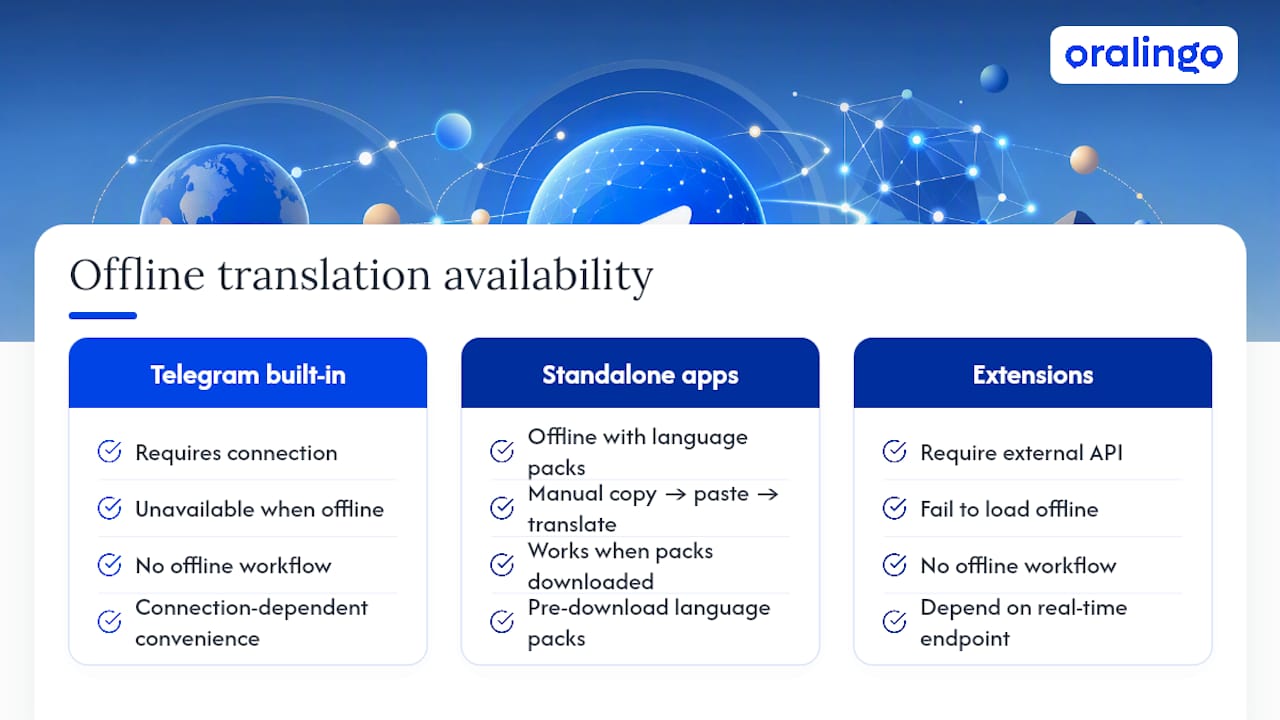
Telegram's built-in translation feature needs a connection. The per-message Translate button and Premium's chat-wide translation both send text to Telegram's servers for processing, so if you're on a plane, in a subway tunnel, or somewhere with no signal, neither option works.
Some standalone translation apps, separate from Telegram, offer offline language packs you can download in advance. Google Translate's app is a common example, letting you cache specific language pairs before you lose connectivity. The workflow if you want this with Telegram messages is manual: copy the message text, switch to your offline translator app, paste it there, then copy the result back if you want to reply in Telegram. It's clunky, but it works when nothing else does.
Browser extensions and third-party apps that translate Telegram Web or mobile messages generally don't offer offline modes either, since most of them, including the extensions discussed earlier, depend on calling an external translation endpoint in real time. No connection means no response from that endpoint, and the translation simply fails to load.
If offline access matters to you regularly, maybe you travel through areas with spotty coverage, plan around it rather than expecting Telegram to solve it natively. Download language packs on a dedicated translator app ahead of time, and treat Telegram's own translation tools as connection-dependent conveniences rather than something you can rely on everywhere.
Tips to Improve Translation Quality
Translation quality on Telegram, or any messaging app, depends heavily on what you feed it. A few habits make a noticeable difference.
Send text, not screenshots. Image-based translation has to first recognize the text in the picture before it can translate it, and that recognition step introduces errors that don't exist when you're translating typed words directly. If someone sends you a screenshot of a message in another language, ask for the plain text instead when you can.
Keep sentences reasonably complete. A fragment like "yes tomorrow ok" gives a translator far less context to work with than "Yes, I'll be there tomorrow, that works for me." Full sentences carry the grammatical signals that translation models use to pick the right meaning, especially in languages where word order changes meaning significantly.
Watch out for slang, idioms, and abbreviations. Machine translation still stumbles on phrases like "break a leg" or regional shorthand, sometimes producing a literal translation that makes no sense to the recipient. When precision matters, spell things out plainly instead of leaning on casual phrasing.
Finally, remember that formatting can get lost outside of Premium's preserved-entity translation. If bold text, links, or line breaks matter for clarity, mention that in a separate line rather than assuming the translation will carry the formatting through cleanly.
Why We Recommend a Dedicated, Encrypted Solution for Sensitive Conversations
Telegram's built-in tools handle casual translation well. A quick message from a stranger, a group chat with mixed languages, that's exactly what the Translate button and Premium's chat translation were built for.
Where they fall short is anything higher stakes: a business negotiation, a legal conversation, a sensitive family matter. That's where Oralingo's approach differs. It translates messages before they're ever displayed, supports over 100 languages, and keeps every conversation end-to-end encrypted. Its hands-free voice mode also means you can speak naturally across a language barrier instead of typing everything out. For anyone handling professional or personal conversations where privacy and accuracy both matter, that combination covers ground Telegram's native tools and third-party extensions simply weren't built for.
— Poul
Oralingo: Secure Real-Time Chat Translation
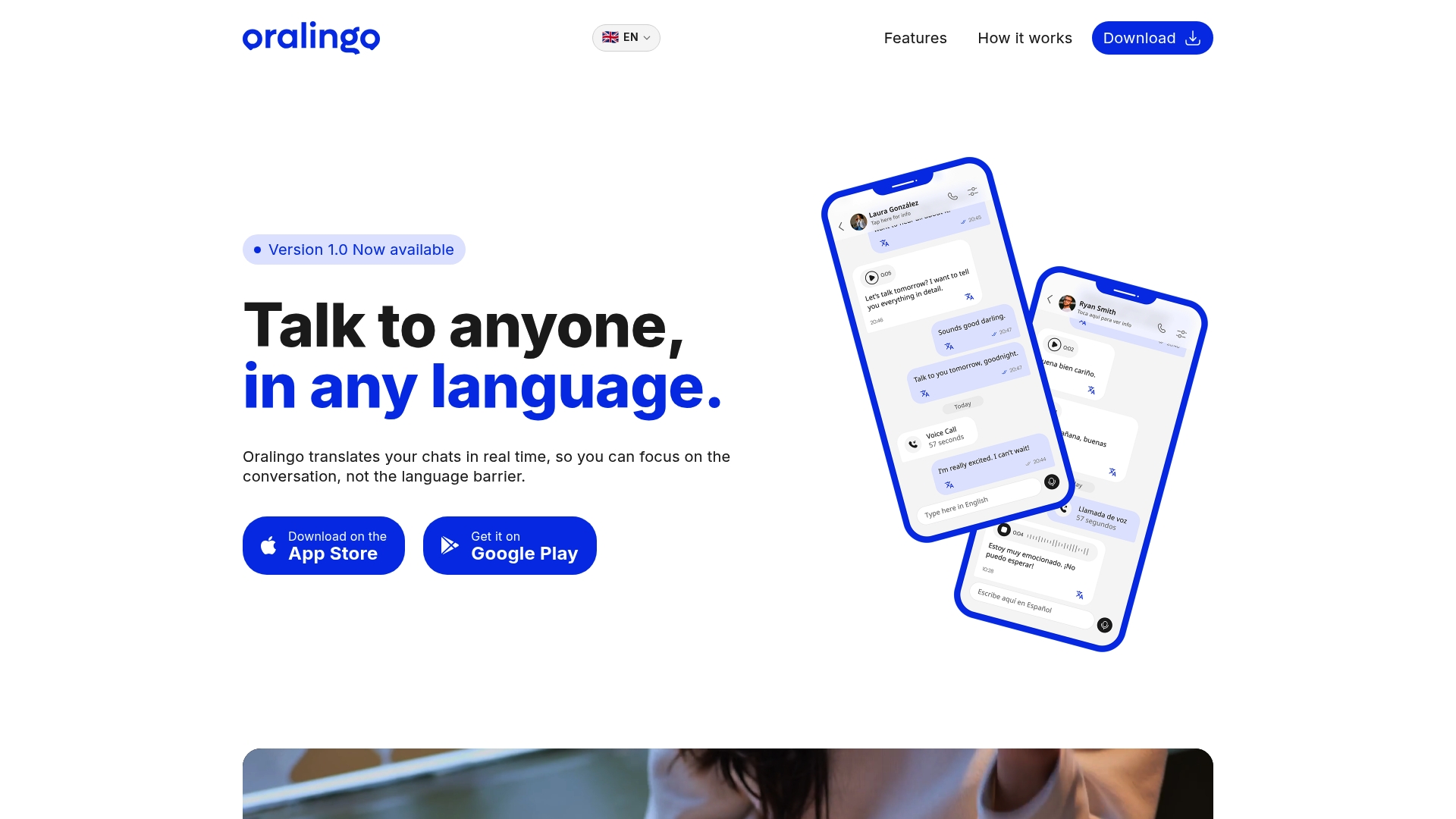
Oralingo is the alternative to bolting a browser extension or unverified app onto your Telegram habit. Instead of routing your words through a public endpoint and hoping the formatting survives, Oralingo translates messages before they ever appear on screen, so the conversation feels natural instead of chopped up by a translation pop-up.
It's built for exactly the situations this guide flagged as risky for casual tools:
- Real-time, pre-delivery translation across over 100 languages
- End-to-end encryption on every conversation
- Hands-free voice mode for spoken conversations, not just typed ones
- Tone and context preserved instead of flattened into stiff, literal phrasing
If you're a business professional negotiating across a language gap, part of a multilingual family, or simply tired of copy-pasting messages into a separate translator app, it's worth reading more on how instant message translation actually works before you decide. When you're ready to try it yourself, check out Oralingo and see how a conversation feels when the language barrier isn't part of it.
Sources
- Message translation — Telegram API
- Telegram: How to translate messages in the app — Android Police
- BinhTHB/telegram-web-translator — GitHub
- Telegram™ Web Translator - Chrome Web Store