
Your translator voice is controlled by two places: your device's text-to-speech engine and the app's own speech settings. Change it in either spot depending on your platform. On Android, open the Translate app's speech settings for tone, gender, and dialect. On iPhone, go to Accessibility → Spoken Content → Voices. On desktop, adjust your system or browser TTS. If sound cuts out, check the engine, downloaded voice data, and any screen reader running in the background.
TL;DR:
- Voice customization on Android depends on both app settings and your device's TTS engine, with options limited by language support and regional dialect availability.
- iPhone users can modify voices through accessibility settings, but some apps may have their own voice engine requiring a restart for changes to take effect.
- Desktop translation relies on system or browser voices, so changing the overall voice requires adjusting system settings or using specialized extensions.
- Voice options are constrained by the underlying TTS engine's supported languages, genders, and high-fidelity voice packs, which may lead to robotic-sounding output or limited gender choices.
- For professional or private use, dedicated translation apps like Oralingo provide consistent, editable voices and end-to-end encryption, surpassing system TTS capabilities.
Table of Contents
- How to Change Translator Voice on Android
- How to Change Translator Voice on iPhone or iOS
- How to Change Translator Voice on Web and Desktop
- How System Text-to-Speech Engines Determine Translator Voice
- Fixing Common Translator Audio Problems
- What to Know About Accessibility and Language Coverage
- When to Use Device Settings vs. a Dedicated Translation App
- A Simple Rule for Choosing Your Voice Setup
- Try Oralingo for Editable, Private Voice Translation
- Sources
- FAQ
How to Change Translator Voice on Android
Google Translate on Android pulls its speech settings from two layers: the app itself and your phone's system TTS engine. Most of what you need lives right inside the app, though.
Here's the exact path to get there:
- Open the Translate app and tap the three-line menu icon.
- Tap Settings, then Speech input.
- Toggle Speak output on if it isn't already active.
- Look for Tone, where supported languages let you pick between male and female voice profiles.
- Check Region to select a dialect, which changes both accent and pronunciation style.
- Adjust the speech rate slider if you want output slower or faster by default.
Not every language offers a Tone selector. Google's own Android speech settings guide confirms tone and region choices only appear where the underlying language supports them, so a missing option usually isn't a bug on your end.
If you just want a quick, temporary slowdown without touching settings at all, double-tap the speaker icon on the translated result. This plays the audio noticeably slower, which is handy for catching pronunciation on the fly. It resets each time, so it won't change your permanent output speed.
For a deeper voice swap, head to your phone's system settings instead of the app. Go to Settings → Accessibility (or Language & input on some Android skins) and find Text-to-speech output. From there you can switch the entire TTS engine and download higher-quality voice packs, which often sound less robotic than the default.
Pro Tip: After switching engines or downloading a new voice pack, close and reopen the Translate app completely. Some voice changes don't take effect until the app restarts and re-links to the new TTS engine.
To confirm the new voice stuck, translate a short phrase and tap the speaker icon. If it still sounds like the old voice, double-check that the correct engine is selected as your default under Text-to-speech output settings.
How to Change Translator Voice on iPhone or iOS
iPhone routes almost all translated speech through one control center: Spoken Content, tucked inside Accessibility. This is where you pick, download, and manage every voice your device can use for reading text aloud, including in apps that rely on system TTS.
Follow these steps to switch it up:
- Open Settings → Accessibility → Spoken Content → Voices.
- Select your language, then browse the list of available voices for that language.
- Tap a voice to preview it before committing.
- If you see an option marked "high quality" or "enhanced," download it. These sound noticeably more natural than the default compact voice, though the file size is larger.
- Adjust the Speaking Rate slider on the same screen to set your preferred default speed.
- Back out to Spoken Content and test playback there before opening your translation app, so you know the new voice actually works before troubleshooting inside the app.
Community guides on changing translator voices note that iOS voice downloads sometimes take a minute or two to finish installing, especially the enhanced versions, according to one community walkthrough on the process. Don't assume a failed switch. Give it time.
One catch worth knowing: some translation apps use their own bundled voice engine rather than pulling from your system's Spoken Content list. If you picked a new voice in Settings and the Translate app still sounds unchanged, that's often the reason. Try force-closing the app and reopening it. If that doesn't work, check whether the app has its own internal voice or language settings separate from iOS accessibility.
Pro Tip: Test your new voice inside Spoken Content first by highlighting text anywhere on your phone and using the "Speak" gesture. If it sounds right there but wrong in your translation app, the problem is app-specific, not a system setting.
How to Change Translator Voice on Web and Desktop
Desktop translation tools don't have their own voice engines the way mobile apps sometimes do. They lean almost entirely on your operating system's or browser's built-in text-to-speech, which means the fastest way to change the voice is usually outside the browser window entirely.
A few practical routes to try:
- Change your OS-level voice profile (Windows Narrator settings, macOS Spoken Content) since browsers typically inherit whatever voice your system has installed.
- Try switching the Google Translate site to a different regional domain or language setting. Some users report this produces a different accent, though it's inconsistent and not a guaranteed fix.
- Install a reputable browser extension built specifically for text-to-speech if your system voices sound flat. Vet any extension's permissions first. Voice tools often request microphone or clipboard access you don't actually need.
- Check whether your browser itself has speech settings buried in accessibility preferences, separate from the OS.
The same accessibility guidance that governs mobile TTS applies here: your system's spoken text settings determine which voices any website or app can use, browser included.
Once you've made a change, run a quick test: translate a sentence, play it back, and compare it to how it sounded before. If nothing changed, the browser may be caching an old voice selection, and a full restart usually clears that.
How System Text-to-Speech Engines Determine Translator Voice
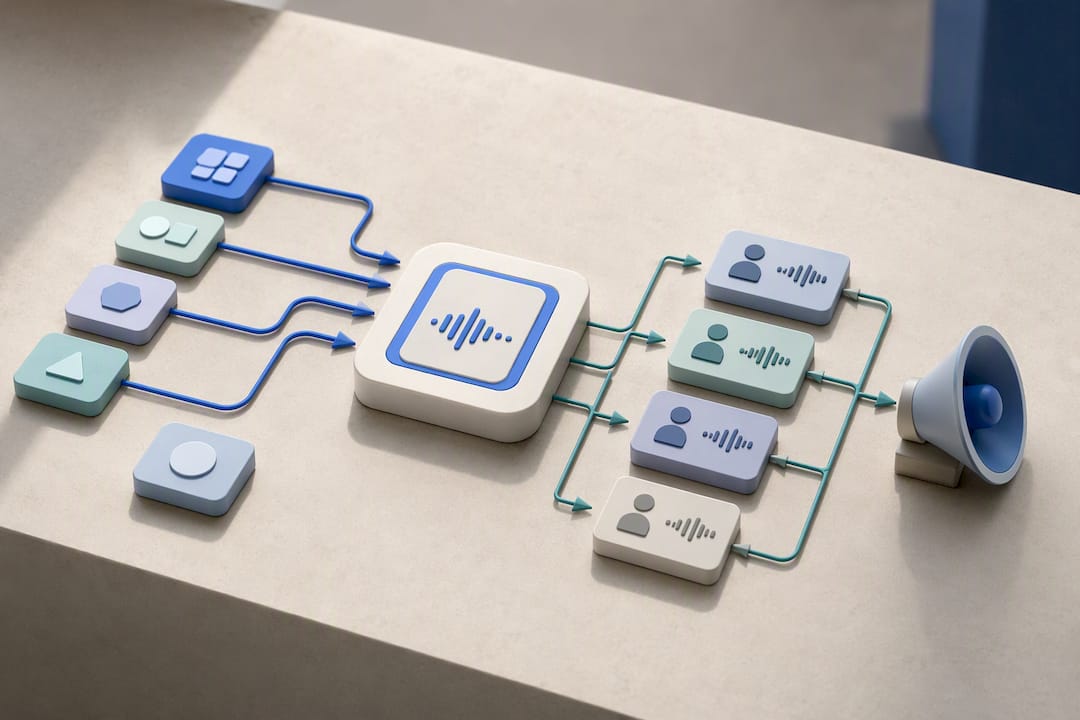
Three separate things combine to produce the voice you hear: the TTS engine (the software doing the synthesis), the voice profile (the specific character, accent, and gender), and the voice data (the actual downloaded files the engine reads from). Translation apps rarely generate speech themselves. They hand the translated text off to whichever engine your device has set as default, and that engine decides how it sounds.
This explains a few common frustrations:
- Some languages simply don't have multiple gender or tone options because no voice profile exists for them yet in that engine.
- A voice sounding robotic or thin often means you're using the compact default rather than a downloaded high-fidelity pack.
- Switching engines usually takes effect immediately, but downloading new voice data can require a restart of the translation app to register.
Community discussion around Google Translate's own voice options confirms this pattern directly. One long-running support thread on male voice availability shows users repeatedly discovering that gender choice depends entirely on which languages the underlying engine supports, not on any setting inside the app itself. If your language shows no Tone option, the engine hasn't been built with that voice profile yet.
Google's own accessibility documentation backs this same architecture: voice profiles and their availability are managed at the system Text-to-Speech level, and apps simply request access to whatever is installed there. That's why app-level settings only get you partway. The real voice library lives in your device's accessibility menu.
Fixing Common Translator Audio Problems
Most audio issues trace back to one of five things, checked roughly in this order:
- Confirm your device volume and app permissions are both turned up and granted.
- Tap the speaker icon again. Sometimes output simply didn't get triggered the first time.
- Verify the correct TTS engine is selected as default under Accessibility or Language settings.
- Check that voice data for your target language has actually finished downloading, not just started.
- Update the translation app itself. Older versions sometimes lose compatibility with newer voice packs.
If you're running a screen reader alongside translation playback, you may hear overlapping or garbled audio. This happens because screen readers can grab audio focus away from the TTS engine mid-sentence, according to Google's own speech settings documentation. The fix is simple: use headphones, or briefly disable the screen reader while testing translated audio.
Robotic-sounding voices almost always mean you're on a basic compact voice rather than an enhanced one. Download the higher-quality option for your language, and if that still sounds off, try switching to a different engine entirely rather than tweaking settings within the same one.
Pro Tip: Clear the app's cache before reinstalling if you're troubleshooting a stubborn issue. A fresh reinstall often resolves audio glitches faster than hunting through settings menus.
For language-specific quirks that basic troubleshooting doesn't fix, official support threads are often where users first report gaps in gender or dialect availability, well before app updates catch up.
What to Know About Accessibility and Language Coverage
Not every language supports spoken output, and even fewer offer a full choice of gender or tone. Before assuming your settings are broken, check whether your target language has voice support listed at all. If Tone or Region options are simply absent, that's a coverage gap, not a setting you missed.
A few habits make translated speech easier to use, especially if you're relying on it for comprehension:
- Use headphones when testing new voices. It's easier to judge clarity without ambient noise.
- Prefer downloaded high-quality voice packs over compact defaults whenever your language offers them.
- For low-resource languages with no natural-sounding voice available, slow the playback rate rather than fighting for a voice that doesn't exist yet.
- For anything business-critical or legally sensitive, don't lean on synthesized speech alone. A human interpreter remains the safer call.
When to Use Device Settings vs. a Dedicated Translation App
Tweaking your system's text-to-speech settings works fine for casual use: reading a menu abroad, understanding a text from a friend, or learning pronunciation. But device TTS has a ceiling. It gives you whatever voices your OS happens to include, with no control over tone consistency across a conversation and no privacy layer built specifically for translation.
That's the gap an app like Orphora AI is built to close. A few scenarios where an editable, app-level voice setup earns its place over system tweaks:
- Real-time conversations where you need hands-free voice mode instead of typing and waiting for playback.
- Situations involving over 100 languages where digging through separate OS voice packs for each one isn't practical.
- Private conversations that call for end-to-end encryption, which system TTS settings have no concept of.
- Business or personal calls where a consistent, editable voice matters more than whatever your phone happens to ship with.
If you're curious how accent and voice profile choices affect how listeners understand you, this guide on choosing a translator accent walks through the practical side of that decision.
A Simple Rule for Choosing Your Voice Setup
Here's the rule I'd give anyone stuck deciding: use system TTS for casual, throwaway translation. Use an editable app voice for anything public, recorded, or business-critical. If you're ordering coffee abroad, your phone's default voice is fine. If you're recording a client call or presenting to a multilingual team, you want control over tone and consistency that device settings simply weren't built to give you. For more on when that distinction actually matters in practice, see how voice translation compares to hiring an interpreter for professional use cases.
— Poul
Try Oralingo for Editable, Private Voice Translation
Oralingo is the alternative to fiddling with system TTS menus every time you switch languages or devices. Instead of hunting through Accessibility settings on three different phones, you get one app with consistent voice controls built in.
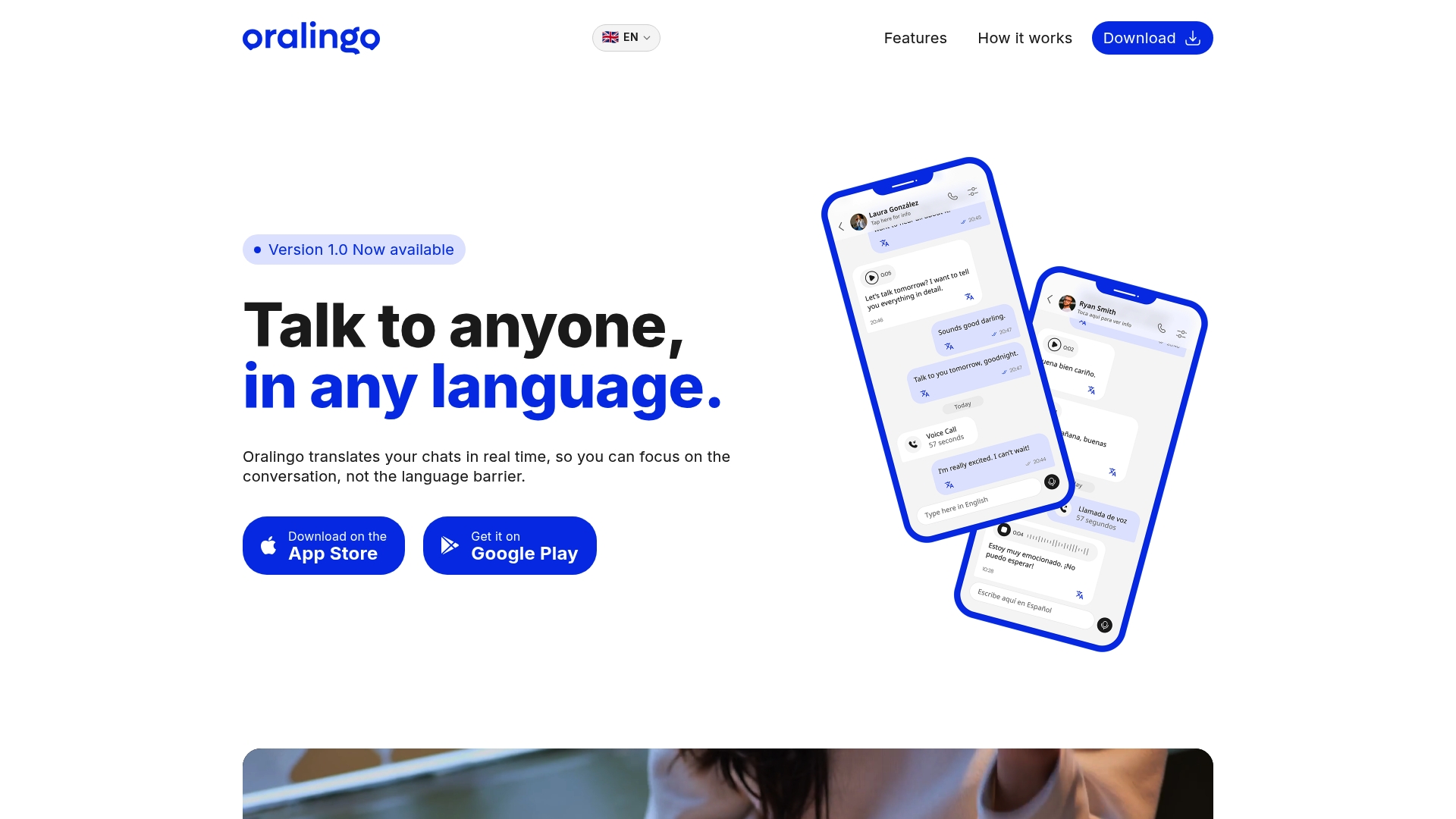
Oralingo translates messages before they even display, so conversations flow naturally instead of stalling on a delay. Its hands-free voice mode lets you talk instead of type, it supports over 100 languages, and every conversation stays private with end-to-end encryption. That combination matters most for international business professionals on client calls, long-distance couples texting across time zones, and expats who need reliable spoken translation without babysitting device settings.
If you've been patching together system voice tweaks and still hitting walls, it's worth testing a setup built specifically for spoken conversation. Try Oralingo and see how hands-free voice translation feels when the voice controls live in one place instead of scattered across your phone's settings menus.
FAQ
How Can I Change My Translator Voice?
Change it in two places: your translation app's speech settings (like Google Translate's Speech input menu on Android) or your device's system text-to-speech settings under Accessibility. Most gender, tone, and dialect options live in the app, while voice quality and available voice packs come from your system TTS settings.
Is It Possible to Change the Voice on Google Translate?
Yes, on Android you can toggle Speak output, adjust speed, and pick Tone or Region under Settings → Speech input in the app, though availability depends on the language, according to Google's own documentation. Not every language offers a male/female tone choice.
How Do I Change the Translate Voice on iPhone?
Go to Settings → Accessibility → Spoken Content → Voices, select your language, and choose or download a voice from there. If the Translate app doesn't reflect your choice, force-close and reopen it, since some apps use their own bundled voice engine instead of pulling from iOS accessibility settings.
What's the Best Option for Real-Time Voice Translation?
For casual, one-off translations, your device's built-in TTS works fine. For real-time conversations that need hands-free speaking, consistent tone, and privacy, an app like Oralingo offers voice mode across over 100 languages with end-to-end encryption, which system settings alone can't provide.
Why Doesn't My Language Have a Voice Gender Option?
Gender and tone options depend on whether the underlying text-to-speech engine has built a voice profile for that specific language, and coverage varies widely. Community reports on Google's support forum confirm this gap is common for less widely spoken languages.