
Translation apps can genuinely improve access to spoken and written conversation for people with hearing, vision, motor, or cognitive impairments. Live captions, text-to-speech, and hands-free voice modes are the three mechanisms doing most of that work. But accuracy still drops in noisy rooms or with unusual speech patterns, and privacy matters when the conversation is personal, so pairing the right app with smart developer practices is what makes accessibility real rather than theoretical.
TL;DR:
- Achieving reliable accessibility requires pairing high-quality on-device speech recognition and text-to-speech with noise reduction and privacy safeguards.
- Multiple features, including captions, audio output, and hands-free controls, must work together, tailored to users' specific disabilities.
- Accuracy drops significantly in noisy environments and with complex or technical language, so offline processing and human interpretation are recommended for critical situations.
- Proper app setup involves testing language support, enabling accessibility options, and verifying sensitivity to ambient noise and microphone placement.
- Developers should incorporate user testing with disabled individuals and adhere to WCAG standards to ensure features are genuinely accessible from the start.
Table of Contents
- What Makes Accessibility in Translation Apps Possible
- Matching Features to Specific Accessibility Needs
- Where Translation Apps Fall Short
- Building Translation Tools That Actually Work for Disabled Users
- Choosing and Setting Up a Translation App the Right Way
- Why Accessibility Can't Be an Afterthought in Translation Tech
- Try Oralingo for Private, Real-Time Accessible Translation
- Sources
What Makes Accessibility in Translation Apps Possible
Accessibility in translation apps comes down to a handful of technical building blocks. Each one solves a different barrier, and understanding how they work helps you pick the right tool instead of guessing.
Live captioning powered by automatic speech recognition (ASR) turns spoken words into text almost instantly. The app listens, transcribes, translates, and displays the result, usually within a second or two. This is the backbone of real-time conversation support, and it's the same technology that lets you read what someone just said instead of straining to catch every word. Caption quality depends heavily on microphone placement and background noise, a limitation confirmed by an exploratory study on translation apps in Australian aged-care hospitals, where staff found the apps useful for short, simple exchanges but less reliable once the ward got loud.
Text-to-speech (TTS) output reads translated text aloud, which matters enormously for people who can't or don't want to read a screen. Voice quality varies by language, and the best implementations sync cleanly with screen readers like VoiceOver or TalkBack instead of fighting them for control of the audio channel.
On-device and offline translation processes language locally instead of sending audio to a server. This helps in two very different ways: it keeps sensitive conversations off the cloud, and it keeps the app working when you have no signal. Google's own accessibility update for Translate added expanded offline language packs specifically because so many users needed translation in places without reliable connectivity.
Hands-free controls let you talk instead of type, which removes a real barrier for anyone with limited hand mobility, tremors, or fine-motor conditions. A well-designed hands-free voice mode listens continuously, translates on the fly, and hands control back to you with a simple tap or voice command rather than a maze of menus.
Beyond these core mechanics, the interface itself needs to hold up. Look for:
- High-contrast text and adjustable font sizes for low-vision users
- Screen-reader labels on every button, not just the obvious ones
- Large touch targets that don't require pinpoint accuracy
- Simple, predictable navigation with minimal nested menus
A quick example: a traveler with low vision opens a translation app, taps once to start hands-free voice mode, speaks a question, and hears the translated reply read back automatically. No typing, no squinting at small text, no hunting through settings. That's what these features look like when they work together instead of in isolation. For a deeper look at how the underlying mechanics function during a live exchange, see how translation apps work in real conversations.
Matching Features to Specific Accessibility Needs
Different disabilities need different solutions, and no single feature covers everyone. Here's how the major categories break down.
-
Deaf and hard-of-hearing users rely most on captions and transcripts, but caption timing and accuracy directly determine how much sense the conversation makes. A caption that lags three seconds behind speech, or garbles a key word, can turn a simple exchange into a guessing game. It's also worth separating two different problems: captioning text and translating into sign language are not the same technical challenge. Research on sign-language translation tools points out that converting spoken or written language into sign requires grammar-aware models and animated or avatar-based output, something a standard captioning engine was never built to do. If sign language is your primary mode of communication, a captioning app alone won't close the gap.
-
Blind and low-vision users depend on reliable text-to-speech and full screen-reader compatibility. That means every button, menu, and status message needs a proper label, not just the translated text itself. An app can nail the translation and still fail this user completely if its "send" button reads as "unlabeled button" to VoiceOver. Keyboard navigation and consistent focus order matter just as much as the audio output.
-
Cognitive impairments benefit from simplified phrasing and control over pacing. Some users need translated speech slowed down, repeated, or delivered in shorter chunks rather than one long paragraph. Apps that let you replay a translated line, or that break long sentences into smaller pieces, reduce the mental load of following a conversation in real time.
-
Motor impairments are best served by voice-first workflows. If typing is difficult or exhausting, a hands-free voice mode removes the barrier entirely: you speak, the app translates, and the conversation continues without ever touching a keyboard. Large tap targets and voice-activated commands matter here too, since fine motor precision on a small screen can be a genuine obstacle.
A few concrete scenarios show how this plays out. In a classroom, a hard-of-hearing student uses live captions to follow a lecture delivered in a second language, catching key terms in near real time instead of relying entirely on a note-taker. In a clinic, a nurse and a patient who don't share a language lean on combined audio and text output. Clinical usability research backs this up directly: the aged-care hospital study found staff valued that audio-plus-text combination for everyday exchanges, though they still turned to phrase libraries or human interpreters when the conversation got clinically specific. And in a family chat, a grandparent who speaks a different language from their grandchildren uses hands-free voice mode to have an actual back-and-forth conversation, no typing required from either side.
The common thread across all four groups: no single feature does the job alone. Captions help hearing but not vision. TTS helps vision but not motor limitations. The apps that serve accessibility well combine several of these mechanisms and let the user choose which ones they need.
Where Translation Apps Fall Short
Accuracy in translation apps isn't a fixed number. It shifts depending on the language pair, the complexity of the phrasing, and how clean the audio input is. A DOI-indexed study on mobile translation in healthcare found these tools handle short, simple phrases reasonably well but become unreliable for complex or technical content without a clinician double-checking the output. That's a meaningful distinction: casual conversation is a very different test than a medical instruction.
Noisy environments are the most common real-world failure mode. ASR engines struggle to separate speech from background chatter, traffic, or overlapping voices, and accented or atypical speech patterns can throw off recognition even in a quiet room. The aged-care ward study mentioned earlier flagged exactly this: microphone limitations and ambient noise were repeat complaints even when the translation itself was directionally correct.
A significant portion of caregivers and staff in that healthcare study pointed to microphone and noise issues as the main barrier to reliable everyday use, even though they still found the apps helpful for short exchanges. Source: PMC exploratory study
Privacy is the other major concern, and it deserves the same weight as accuracy. Cloud-based translation typically sends your audio or text to a server for processing, which raises reasonable questions when the conversation involves medical details, legal matters, or anything personal. On-device processing avoids that exposure entirely, and it's worth checking whether an app offers it before you use it for anything sensitive.
A short checklist for handling these limits well:
- Use offline or on-device mode for private or sensitive conversations whenever it's available
- Build a personal phrase library for recurring, high-stakes exchanges (medical history, legal terms, workplace jargon)
- Bring in a human interpreter for anything with legal, medical, or safety consequences
- Test the app in the actual environment you'll use it in, not just a quiet room
Translation apps are not appropriate as the sole channel for consent forms, legal proceedings, or complex medical diagnoses. They're strong tools for everyday accessibility and connection. They're not a replacement for a licensed interpreter when the stakes are high. For more on where accuracy tends to break down by language pair, see what research shows about AI chat translation accuracy.
Building Translation Tools That Actually Work for Disabled Users
Good accessibility doesn't happen by accident. Developer research on translation technology finds that awareness of accessibility needs is rising across the industry, but actual practices vary a lot from one team to the next. The thesis on inclusive translation technology makes the case plainly: structured engagement with users who have disabilities, paired with routine accessibility audits, is what separates apps that merely claim accessibility from apps that deliver it.
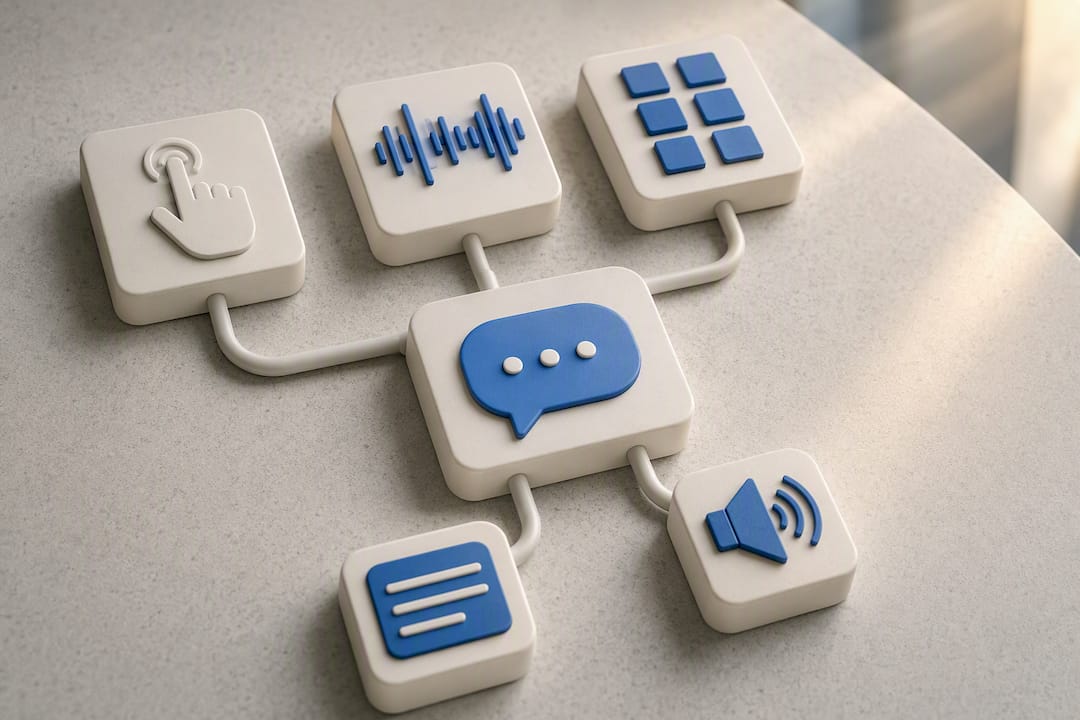
Multimodal design is a big part of that gap. Combining touch, voice, and visual cues gives users more than one way into the same task, which matters because no single input method works for everyone. A prototype multimodal translation tool tested with touch and voice input found voice input raised user satisfaction quickly, while touch-based interaction needed several rounds of redesign before it felt natural. The lesson for anyone building these products: don't assume a new input mode works just because it seems intuitive on paper. Test it with real users, watch where they stumble, and revise.
Localization work matters here too, in a way that's easy to overlook. Translating the words on a button is only half the job. Guidance on accessibility and translation points out that screen-reader labels, ARIA roles, and reading order all need to survive the translation process intact, or the app can end up accurate in text but broken for assistive technology. A perfectly translated label that a screen reader can't parse isn't accessible at all.
Teams building or evaluating translation tools should look for a few concrete practices:
- User testing that specifically includes people with disabilities, not just general usability panels
- Formal accessibility audits mapped against WCAG guidelines, run on a regular schedule
- A named accessibility owner or role, so the responsibility doesn't fall through the cracks
- Documentation of accessibility decisions, so future updates don't quietly undo past fixes
- Assistive-technology compatibility tests (VoiceOver, TalkBack, screen magnifiers) before every major release
Accessibility consultants who specialize in mobile compliance, such as the guidance in this overview of ADA-compliant app development, often recommend treating these checks as a release gate rather than a nice-to-have, which lines up with what the developer research found: teams that skip structured testing tend to ship apps that look accessible but fail in practice.
Pro Tip: Add a five-minute assistive-technology check to every sprint review, not just before a major release. Turn on VoiceOver or TalkBack and try to complete one core task blind. Catching a broken label early is far cheaper than fixing it after users report it.
Choosing and Setting Up a Translation App the Right Way
Picking a translation app for accessibility means checking a specific set of boxes before you download anything, then configuring it properly once it's on your phone.
- Check ASR and TTS quality for your specific languages. Not every language pair gets equal engineering attention, so test with a real phrase in the language you actually need before committing.
- Confirm on-device or offline options exist. This protects both your privacy and your ability to use the app without a signal.
- Review the accessibility settings menu before you need it. Font scaling, contrast modes, and caption timing controls should be easy to find, not buried three menus deep.
- Read the privacy policy for data handling specifics. Look for clear language on whether audio is stored, how long, and whether it's used to train models.
- Verify language coverage matches your actual use case. A 100-plus language claim means little if the two languages you need aren't well supported.
Once you've picked an app, setup matters just as much as selection. Choose your microphone input carefully, external mics placed close to the speaker outperform a phone lying flat on a table. Download offline language packs before you travel or enter a low-signal area. Turn on screen-reader compatibility and test it immediately rather than assuming it works. If you rely on captions, adjust the display timing settings so text doesn't disappear before you finish reading it.
When evaluating a vendor, ask directly: Do you test with people who have disabilities? Is your app aligned with WCAG standards? How is audio data stored and for how long? A vendor with clear answers is a vendor that's actually thought about this.
| Common Issue | Likely Cause | Quick Fix |
|---|---|---|
| Caption lag | Slow network or weak signal | Switch to offline mode if available |
| Misrecognized words | Background noise or accent variation | Move closer to the mic, reduce ambient noise |
| Poor audio playback | Low speaker volume or TTS voice mismatch | Adjust TTS voice settings, check device volume |
| Screen reader silence | Missing accessibility labels | Report to support; try an alternate app if unresolved |
For families juggling multiple languages and multiple accessibility needs at once, this practical guide to translation tool types walks through how to match tools to different household situations.
Why Accessibility Can't Be an Afterthought in Translation Tech
Most translation apps treat accessibility as a settings menu you dig into after the fact, a font-size slider bolted onto a product that was designed for someone else first. That gets the priority backwards. The research on developer practices makes this clear: teams that build with disabled users from the start ship fewer accessibility bugs than teams that patch them in later. Retrofitting a screen reader label onto a button that was never structured to hold one is always messier than building it in from day one.
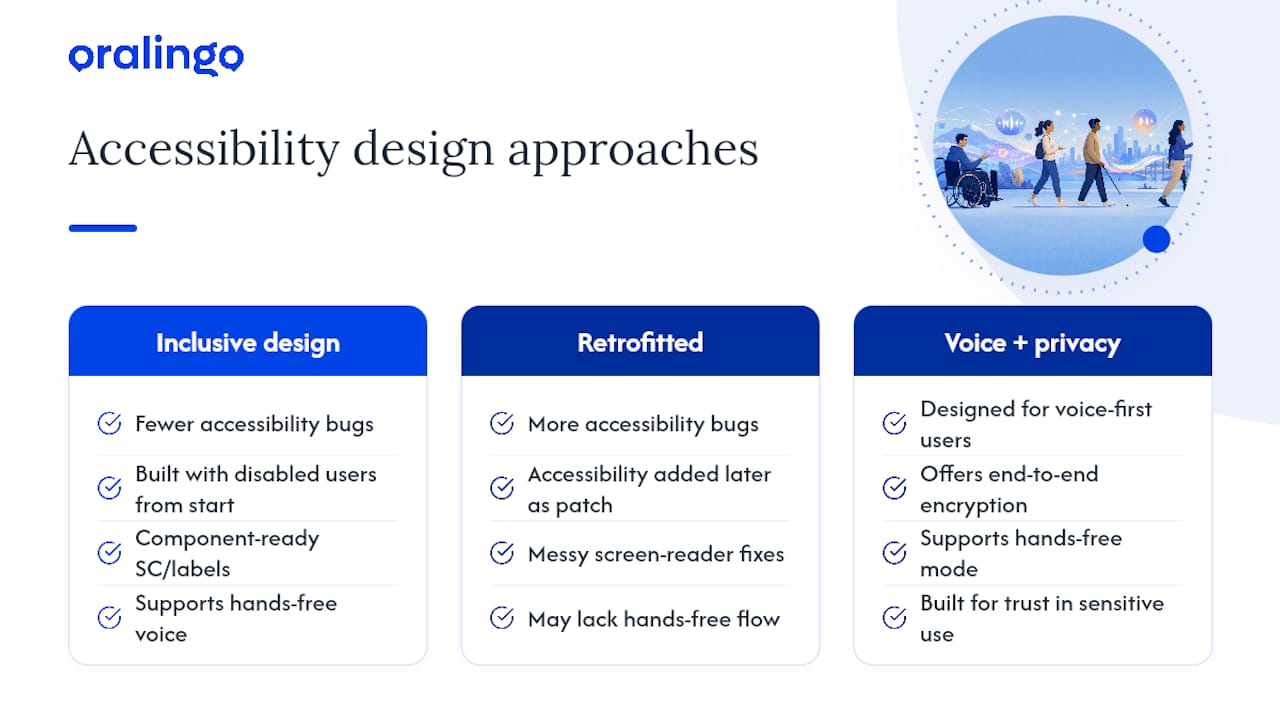
The bigger blind spot, in my view, is privacy. Most conversations about accessibility focus on captions and voice output, and rightly so, but almost nobody asks where the audio goes once it leaves your phone. For a user with a disability who relies on voice input for every conversation, that's not a minor detail. It's the difference between a tool you can trust with a doctor's appointment and one you can only use for small talk.
Some translation apps offer hands-free voice mode and end-to-end encryption to serve users who need voice-first interaction and privacy. If you want to see how this plays out in practice, our case studies and product notes go into more detail than this guide has room for. [Author bio placeholder]
— Poul
Try Oralingo for Private, Real-Time Accessible Translation
Some translation apps offer features such as pre-display translation to minimize delays or errors, hands-free voice mode to reduce typing, and support for many languages to cover a wide range of language pairs.
Some apps provide end-to-end encryption to address privacy concerns for sensitive conversations. However, for legal proceedings, medical diagnoses, or anything with serious consequences, it is recommended to use a human interpreter alongside any app.
If hands-free, private, real-time conversation sounds like what you've been missing, download Oralingo and try a conversation in your next unfamiliar language before your next trip, meeting, or family call.
Sources
- Testing the use of translation apps to overcome everyday healthcare communication in Australian aged‐care hospital wards—An exploratory study
- Towards Inclusive Translation Technology: Perceptions and Practices of Accessibility among Translation Technology Developers
- New features make Translate more accessible for its 1 billion users
- Creating a multimodal translation tool and testing machine translation integration using touch and voice