
The fastest fix is WhatsApp's own built-in translator: long-press any message and tap Translate. Android users can go further and turn on automatic per-chat translation, while iPhone owners translate one message at a time. Want to type in another language instead? Gboard's translate toolbar does that. Every native translation happens right on your phone, so nothing gets sent to an outside server.
TL;DR:
- WhatsApp's local translation processing means language packs must be downloaded and tested for each device, causing slower rollouts and limited initial language support.
- Auto-translate works on Android for entire conversations but only on a message-by-message basis for iPhones, requiring manual toggling for each chat.
- Translating voice notes and images is limited; voice notes need transcription first, and images must be processed with separate visual translation tools.
- Browser extensions for WhatsApp Web pose privacy risks and should be used cautiously, especially with sensitive or confidential conversations.
- In group or frequent multi-language chats, continuous translation apps like Oralingo offer more seamless and privacy-preserving solutions than manual toggling.
Table of Contents
- How WhatsApp's Built-In Translate Feature Works
- How to Translate a Single Message on Android or iPhone
- How to Turn on Auto-Translate for a Whole Chat (Android)
- Composing Messages in Another Language With Gboard
- Translating WhatsApp on the Web: Extensions and Copy-Paste
- Is It Safe? What WhatsApp's Privacy Design Actually Means
- What to Do When Translate Is Missing From WhatsApp
- Translating Voice Notes and Images on WhatsApp
- WhatsApp Business vs. Standard WhatsApp: Translation Differences
- Tips for Verifying Translation Accuracy
- When a Dedicated Translator Beats Toggling Settings
- Oralingo: Real-Time Translation Without the Back-and-Forth
- Where to Check for Updates and Official Steps
- Sources
How WhatsApp's Built-In Translate Feature Works
WhatsApp added native message translation across one-to-one chats, groups, and channel updates, according to its own announcement. You'll find it two ways: long-press a message and select Translate, or open a chat's menu and turn on translation for every message going forward.
The two platforms behave differently. Android supports automatic, ongoing translation for an entire conversation. iPhone currently limits you to translating messages one at a time, though Engadget's coverage of the rollout notes both platforms started with a narrower set of supported languages than they'll eventually reach.
Here's what makes this version genuinely private:
- Translations run on your device using a downloaded language pack, not a remote server.
- WhatsApp's own post confirms the text never leaves your phone to get converted.
- Coverage is still expanding, so your language pair might not be supported yet depending on your device and app version.
That local processing is also why the feature can feel slower to reach everyone. Language packs take time to build and test before they ship widely.
How to Translate a Single Message on Android or iPhone
Translating one message you've already received takes a few taps, and the steps differ slightly by platform.
- On Android: Long-press the message, then tap Translate from the pop-up menu (or find it under the three-dot menu if it's not visible right away).
- On iPhone: Long-press the message, tap More, then choose Translate Messages.
- First-time use: Both platforms may prompt you to download a language pack before the translation appears. This is a one-time step per language.
- Adjust languages: If the detected source or target language is wrong, you can usually change it from the translation settings before confirming.
WhatsApp's Help Center recommends keeping the app updated, since translation availability depends on your app version and device, not just your region.
How to Turn on Auto-Translate for a Whole Chat (Android)
If you're texting the same person in another language every day, translating message by message gets old fast. Android lets you flip a switch instead.
- Open the chat, tap the three-dot menu, and select Translate Messages.
- Toggle on Enable Automatic Translation for This Chat.
- Confirm the language pack download if you haven't used that language pair before.
This setting is scoped to that one chat, not your whole app, according to WhatsApp's rollout details. You'll need to repeat the toggle for each foreign-language conversation you want translated automatically. It's most worth setting up for a chat that gets constant traffic, like a family group abroad or a work thread with an overseas colleague, rather than a conversation with someone you message once a month — as explained in detail by How Message Personalization Works for Couples.
Pro Tip: Turn on auto-translate for group chats where multiple people write in different languages. It saves you from tapping Translate on every single message in a fast-moving thread.
Composing Messages in Another Language With Gboard
Sometimes you don't want to translate what you received. You want to write in your own language and send something the other person can read in theirs. That's a different job, and it's where Gboard's translate toolbar earns its place.
Gboard lets you type in your language, then converts your draft before you paste it into WhatsApp, giving you a composer-first workflow that skips app-switching entirely. This beats translating received messages when you're the one initiating contact, replying to a customer, or drafting something with careful wording, since you control the phrasing before it's ever sent.
A few things to watch:
- Machine translation can flatten tone. A casual joke might land as oddly formal, or vice versa.
- Short slang and idioms translate worse than full, clear sentences.
- Reread the translated draft before sending. A quick scan catches most awkward phrasing.
Translating WhatsApp on the Web: Extensions and Copy-Paste
WhatsApp Web doesn't include the native translate button you get on mobile, so desktop users lean on two workarounds. Browser extensions translate text directly inside the page, while copying a message into translate.google.com works without installing anything.
Extensions are convenient but deserve a quick check before you trust them with your conversations:
- Look at the publisher name and how long the extension has been listed.
- Read recent reviews, not just the star average, since fake reviews cluster early.
- Check requested permissions. An extension that only needs access to web.whatsapp.com is safer than one asking to read and change data on every site you visit, per Chrome Web Store guidance.
If a chat involves anything sensitive, personal, financial, or work-confidential, skip the browser tools entirely and stick to WhatsApp's native, on-device translate instead.
Is It Safe? What WhatsApp's Privacy Design Actually Means
WhatsApp's native translation stays on your phone by design. The official announcement states the translation model runs locally using a downloaded language pack, so your message text isn't routed through an outside server just to get converted.
That distinction actually matters for how you choose a translation method. On-device processing is the safer default for private or sensitive chats. Cloud-based tools, including many browser extensions and standalone translation apps, typically send your text to a remote server to process it. That's not automatically unsafe, but it's a different privacy model, and you should know which one you're using before you paste in something personal.
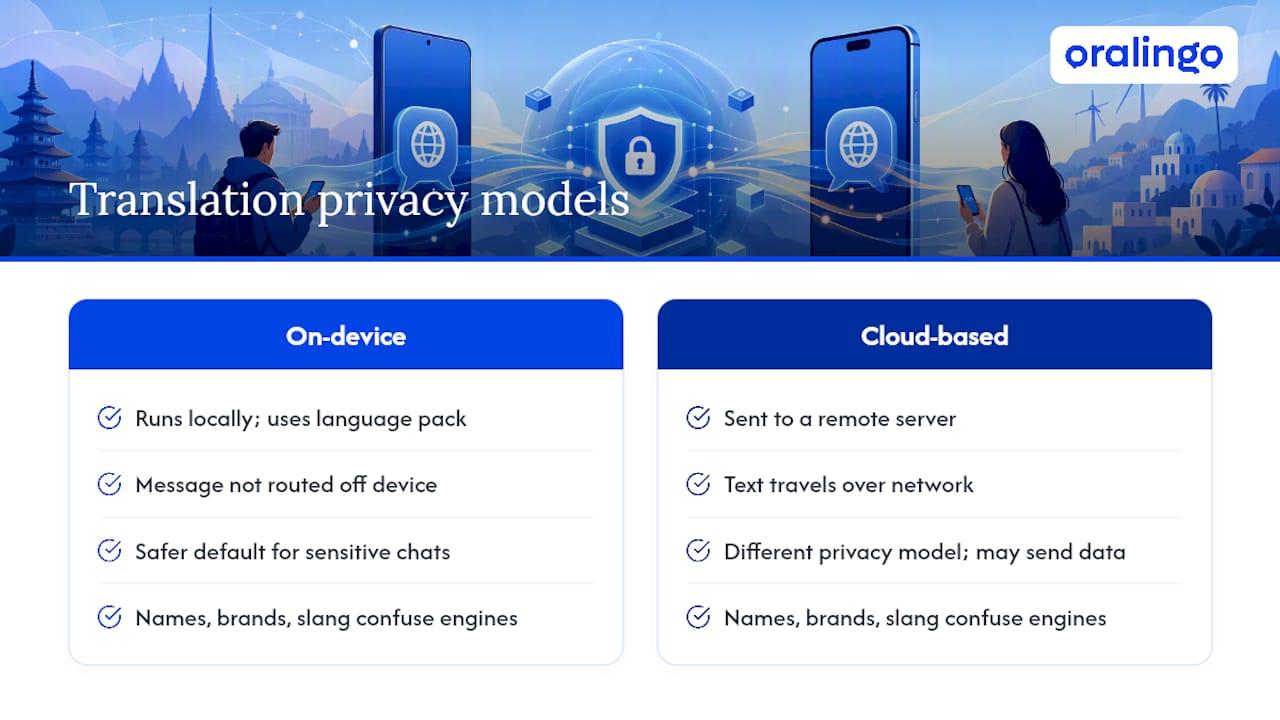
Accuracy has its own limits regardless of where translation happens. Names, brand terms, and slang confuse most translation engines, and idioms often come out literal and strange. A phrase like "it's raining cats and dogs" won't mean much translated word for word into most languages. Build in a habit of rereading anything translated before you act on it, especially numbers, dates, and names.
What to Do When Translate Is Missing From WhatsApp
If you long-press a message and don't see Translate at all, the fix is usually simple.
- Update WhatsApp and your phone's operating system. Feature access ties closely to app version.
- Check that a language pack downloaded successfully; a stalled download can hide the option.
- On Android, confirm you haven't accidentally left auto-translate off for that specific chat.
- If you're using a browser extension, revisit its permissions and reviews, since a broken or abandoned extension often stops working silently.
- As a fallback, use Gboard to compose your own message or copy text into a separate translator app.
WhatsApp's Help Center points to the same root cause repeatedly: staged rollouts mean not every device gets the feature at the same time.
Translating Voice Notes and Images on WhatsApp
Text is the easy case. Voice notes and images take more work because WhatsApp's native translate button doesn't touch either one directly.
For voice notes, your best move is to let WhatsApp transcribe the message first, if that feature is available on your device and language, then run the resulting text through Translate the same way you would a regular message. If transcription isn't available, you're stuck replaying the note and typing out what you hear, or asking the sender to send a text summary instead. This is one of the clearer gaps in WhatsApp's current translation coverage.
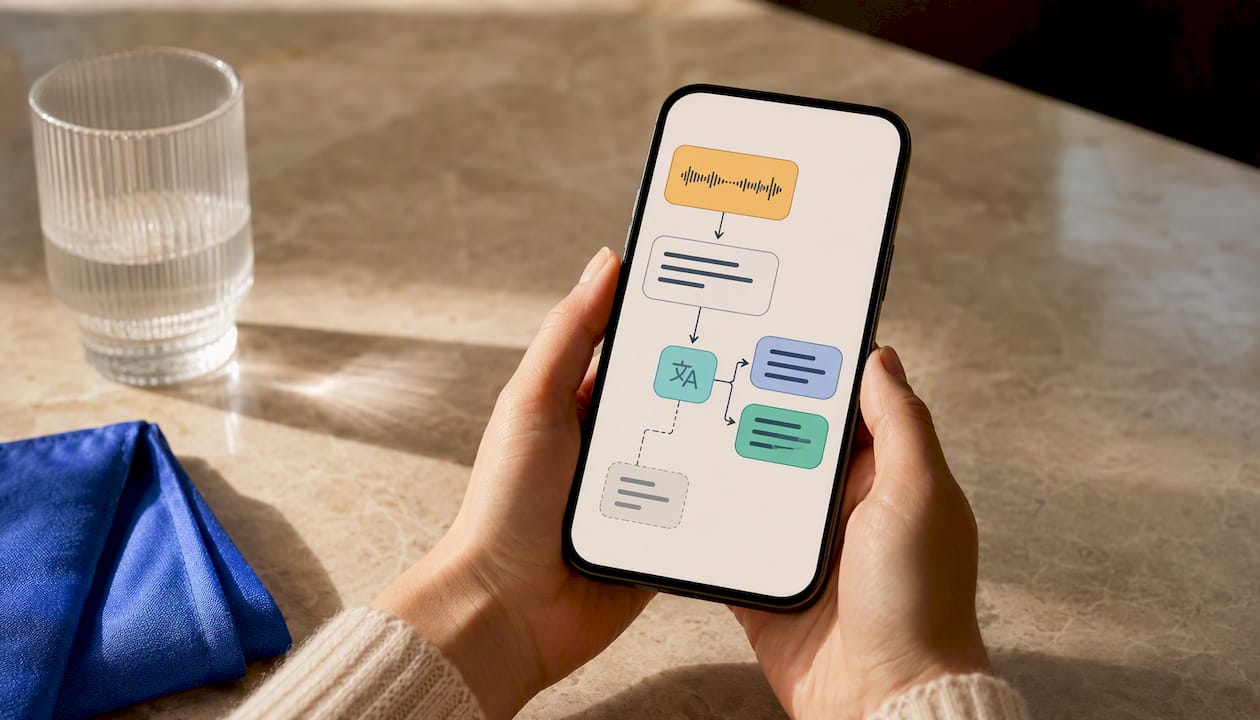
Images are trickier still. If a photo contains text, like a menu, a sign, or a screenshot of another chat, WhatsApp doesn't extract or translate that text automatically. Your practical options are a phone's built-in visual translation tool (many Android and iPhone cameras can translate text they see live) or a dedicated translation app with image input. Save the image, open it in that tool, and let it read the text directly off the picture.
This gap is exactly where a continuous translation app that handles voice and text together starts to look more appealing than piecing together separate tools for each media type, especially if voice messages are a regular part of how you and someone else communicate.
WhatsApp Business vs. Standard WhatsApp: Translation Differences
Standard WhatsApp's native translation and WhatsApp Business share the same core mechanics: long-press to translate, on-device processing, and (on Android) the per-chat auto-translate toggle. If you're a small business owner using WhatsApp Business to message customers, you get the same manual and automatic translation options as anyone on the regular app.
Where things diverge is around automation. WhatsApp Business supports API integrations and automated messaging tools that many companies use for customer service at scale, and translation in that context often depends on whatever third-party tool or chatbot platform a business has built on top of the API, not WhatsApp's native feature. A large company running automated customer replies through the WhatsApp Business API needs its own translation layer built into that workflow, since the native long-press translate is designed for a human tapping through the app, not for automated message pipelines.
For most small business owners just using the WhatsApp Business app itself to chat with customers, the practical experience is nearly identical to standard WhatsApp. The gap only opens up once a business scales into API-based automation, where translation becomes a technical integration decision rather than a tap-to-translate feature.
Tips for Verifying Translation Accuracy
A translated message that reads smoothly isn't automatically a correct one. Machine translation can produce fluent-sounding sentences that still miss the actual meaning, especially with names, numbers, and context-dependent phrases.
A few habits catch most mistakes before they cause a problem:
- Reread numbers and dates specifically. Translation engines occasionally reformat or misplace them.
- If a sentence reads oddly literal or nonsensical, assume an idiom got lost and ask the sender to rephrase.
- For anything with real consequences, a contract detail, a medical instruction, a price, don't rely on a single machine translation. Confirm in plain language with the other person.
- Watch for tone mismatches. A translated message that sounds unusually blunt or formal might just be a rough conversion, not the sender's actual attitude.
Family and personal chats forgive small translation errors easily. Work and business conversations don't, so slow down and double check anything with real stakes attached.
When a Dedicated Translator Beats Toggling Settings
Family group chats spanning three languages, a work team split across time zones, a travel thread with a local guide. These are the situations where flipping between long-press translate, Gboard, and language toggles starts to feel like a part-time job.
The built-in tools genuinely work for occasional messages. But once a conversation becomes daily and two-way, in both text and voice, a continuous, pre-delivery translator that handles the conversation as it happens is worth the switch. That's a different category of tool than translating one message after it lands.
— Poul
Oralingo: Real-Time Translation Without the Back-and-Forth
This app is built for exactly the conversations that outgrow manual translate buttons. Instead of long-pressing every message, it translates what you type or say before it's ever displayed, so both sides read and hear their own language in real time.
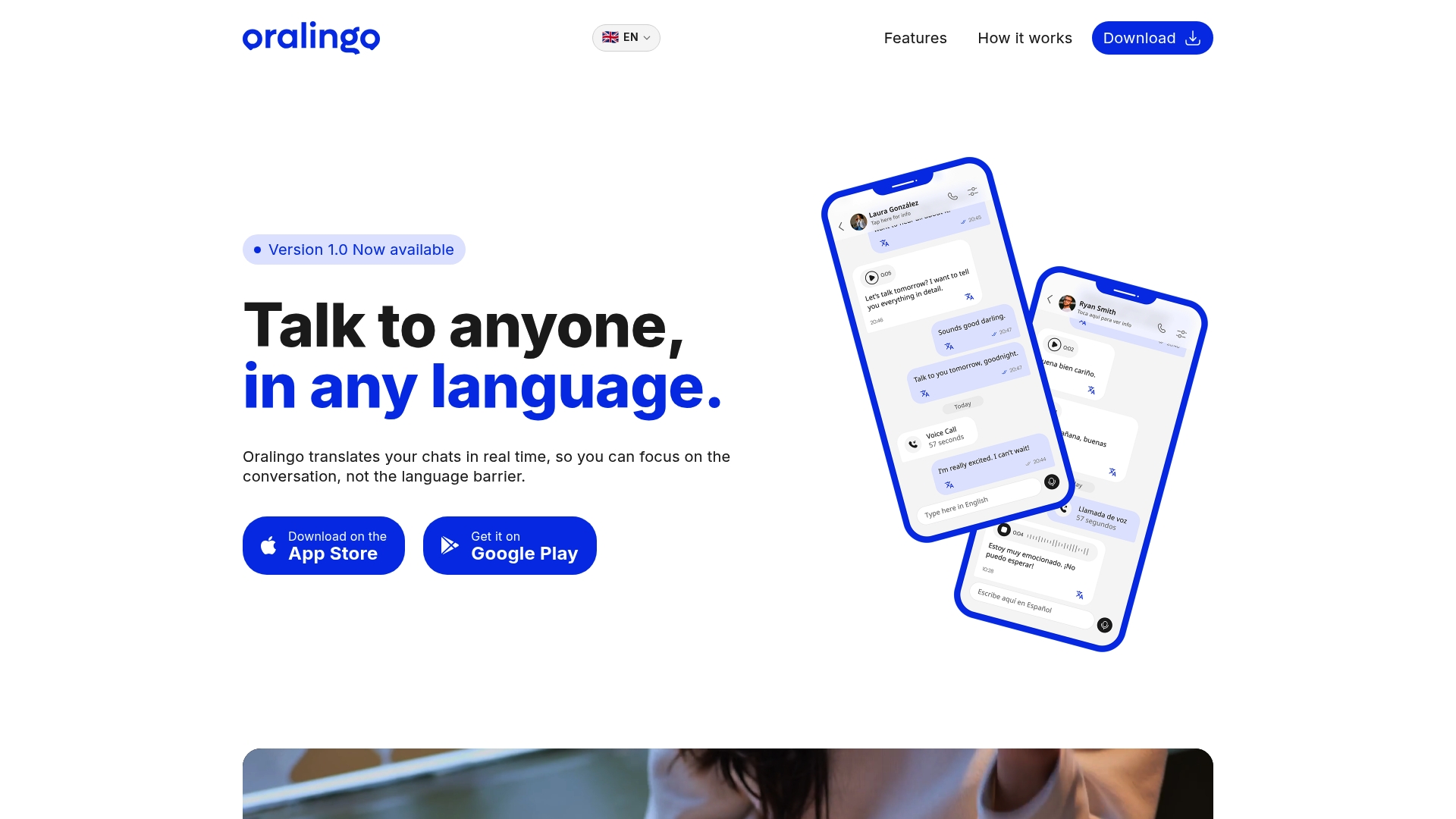
Every conversation stays end-to-end encrypted to maintain user privacy. If you're managing a multilingual family group, a remote team spread across countries, or a long-distance relationship where texting daily in two languages gets exhausting, this kind of continuous chat translation removes the toggling entirely. For a deeper look at how instant translation actually works behind the scenes, that guide breaks down the mechanics. Try Oralingo and start a conversation without thinking about the language gap at all.
Where to Check for Updates and Official Steps
For anything that changes as WhatsApp expands this feature, go straight to the source rather than a screenshot someone shared months ago.
- WhatsApp's announcement covers rollout details, on-device processing, and which chat types support translation.
- The WhatsApp Help Center has the current step-by-step instructions and device compatibility notes.
- For platform-specific rollout timing, Engadget's coverage tracks what launched where and when.
- If group chats in another language come up often, this guide to translating family group messages walks through a common real-world case.
Sources
- Introducing Message Translations on WhatsApp
- How to translate messages
- WhatsApp starts rolling out message translations on iOS and Android
- Chrome Web Store: how to evaluate extensions