The fastest way to translate SMS messages depends on how often you need it. For an occasional text, use your phone's built-in tools: iPhone's Live Translation in Messages or Android's Tap to Translate and Live Translate. For daily or private conversations, a dedicated app like Oralingo translates automatically and keeps every message encrypted.
TL;DR:
- Built-in device translation tools like iPhone's Live Translation and Android's Tap to Translate are fastest and cheapest but support limited languages and features.
- On Android, copying text and using Google Translate's Tap to Translate offers privacy without automatic ongoing translation, while Pixel's Live Translate provides real-time, on-device translation.
- Third-party apps such as Oralingo operate offline on-device, offering automatic, private translation tailored for messaging conversations across many languages.
- Translation of codes, links, and long texts requires extra caution, as models can alter or break formatting, making verification of original content essential.
- For regular use, dedicated apps with full automation and end-to-end encryption outperform manual methods, especially for multilingual group chats or ongoing private conversations.
Table of Contents
- Your Options for SMS Translation, at a Glance
- How Do You Translate SMS Messages on an iPhone?
- How Do You Translate Text Messages on Android?
- What Do Third-Party Translation Apps Actually Do Differently?
- Why Do Codes and Links Get Mangled in Translation?
- How Do You Pick the Right Translation Method for You?
- Can Translators Handle Slang, Abbreviations, and Emojis?
- Can You Translate MMS and Multimedia Messages, Too?
- Why a Dedicated App Beats Ad-Hoc Translation for Regular Use
- Get Started With Oralingo for Ongoing SMS Translation
- Where to Verify These Steps and Go Deeper
- Sources
Your Options for SMS Translation, at a Glance
Every method for translating a text message falls into one of four buckets. Knowing which one fits your situation saves you from downloading three apps before finding the one that actually works.
- Device built-ins. iPhone's Live Translation and Android's Tap to Translate or Live Translate live inside your phone's operating system already. No install required.
- System-level features. These sit one layer above built-ins. Think Pixel's on-device Live Translate, which runs without sending your words to a server.
- Keyboard translators. Gboard and similar keyboards let you type in one language and paste out in another, right inside your messaging app.
- Third-party apps. Dedicated sms translation app tools, including Oralingo, translate before the message ever hits your screen, and often keep everything on-device for privacy.
Here's the honest trade-off breakdown. Built-in device options win on speed and cost. You're using something already installed, and it takes seconds to turn on. They lose a little on flexibility. Apple and Google decide which languages they support, not you.
Keyboard-based workflows are the middle ground. They work across nearly any app, including SMS, WhatsApp, or email, because you're translating at the typing layer instead of the app layer. The catch: you're often copying text out to a browser or a separate translate app, then pasting the result back. That's three extra taps every single time.
Third-party apps close that gap. A text message translator built specifically for messaging, rather than general web pages, tends to handle back-and-forth conversation better because it's designed for exactly that rhythm. The best ones also translate automatically in the background, so you're not manually triggering anything mid-conversation.
Privacy is where these four options split hardest. On-device processing means your words never leave your phone. Cloud processing means they're sent to a server, translated, and sent back. Both can be accurate. Only one keeps your conversation private by design.
Pro Tip: If you're translating anything financial, medical, or otherwise sensitive, on-device processing isn't a nice extra. It's the difference between a private conversation and one that passes through someone else's server.
Jump to the iPhone section if you're on iOS, the Android section if you're not, or skip to third-party apps if neither built-in option covers your language pair.
How Do You Translate SMS Messages on an iPhone?
Live Translation in Messages is Apple's answer to this exact problem, and it's simpler to set up than most people expect.
Here's the enabling sequence:
- Open the conversation you want to translate in the Messages app.
- Tap the contact's name or photo at the top of the screen.
- Select Translate, then choose your Translate From and Translate To languages.
- Toggle on Automatically Translate so every incoming message converts without you lifting a finger.
- Translated text appears below the original message, so you can compare both if something looks off.
Apple's own documentation confirms Live Translation runs on-device in many cases, meaning the translation itself often never touches Apple's servers. That matters if you're texting a relative overseas about something private, or handling a quick business exchange you'd rather not route through a cloud service.
Apple lists specific supported languages for this feature, and the list grows with each iOS update. If your language pair isn't covered yet, you'll see that clearly. The feature won't try to fake a translation it can't do well.
A few things trip people up the first time:
- Missing language pack. If translation isn't appearing, check whether the language needs to be downloaded first. iOS will prompt you, but it's easy to dismiss the prompt without noticing.
- Wrong direction. Double-check your Translate From and Translate To fields aren't reversed. This is the single most common setup mistake.
- Viewing the original. Tap a translated bubble to see the source text underneath. Useful for confirming a name, number, or address wasn't altered.
- Turning it off. Go back into the same contact menu and toggle Automatically Translate off if you want to read raw text again, say for a conversation where you're practicing the language yourself.
- Group threads. Live Translation applies per conversation, so a group chat with mixed languages may need you to translate each thread separately if group support isn't yet available for your update.
One nuance worth knowing: Apple's on-device models are trained for conversational text, not formal documents. That's actually good news for SMS translation specifically, since text messages are shorter and more casual than the emails or contracts a general translator app usually handles. Slang and shorthand still trip up any system, which is why the section on abbreviations later in this guide matters as much as the setup steps.
If you're translating messages for a family member who isn't confident with settings menus, walk them through the toggle once. After that, it stays on and works automatically every time a message arrives from that contact.
How Do You Translate Text Messages on Android?
Android splits this into two paths: Google's system-wide Tap to Translate, and Pixel's more advanced Live Translate. Both work differently enough that it's worth knowing which one you have.
Tap to Translate works across almost any app, not just Messages, because it operates on copied text.
- Copy the text message you want translated (long press, then Copy).
- A small floating Google Translate icon appears near the copied text.
- Tap that icon.
- Google Translate opens with your text auto-detected and translated into your set target language.
Google's own support documentation confirms that copied text is only sent to Google's servers after you tap to translate it, not automatically. That's a meaningful privacy distinction: nothing leaves your device until you actively request the translation.
Live Translate, available on Pixel phones, goes a step further and handles some interactions entirely on-device, closer to how iPhone's Live Translation works. It's built for real-time conversation rather than one-off copy jobs, which makes it a better fit if you're translating an entire back-and-forth thread rather than a single message.
For phones without Live Translate, or for messaging apps outside SMS, keyboard-based workflows fill the gap:
- Install Gboard or your preferred keyboard with translation support.
- Open the keyboard's translate feature, usually accessible via a globe or translate icon in the keyboard toolbar.
- Type in your language; the keyboard suggests or auto-converts to the target language before you send.
- Alternatively, copy incoming text, run it through the keyboard's translate mode, then paste the result back into your reply.
This copy-translate loop is a common fallback recommended across Android forums when a built-in inline option isn't available for a particular app or language pair. It's clunkier than automatic translation, but it works in almost any text field on the phone.
A few practical notes for keeping this smooth:
- Offline packs. Both Google Translate and Gboard let you download language packs for offline use, which matters if you're traveling somewhere with unreliable data.
- Floating icon not appearing. This usually means Tap to Translate is disabled in Google Translate's settings, or the app you copied from is blocking clipboard access.
- Permissions. Some Android security settings restrict clipboard reading between apps. If the translate icon never shows up, check your phone's clipboard access permissions for Google Translate specifically.
- Character limits. Very long pasted messages sometimes get truncated in the popup translator. Breaking a long text into two shorter translations avoids this.
None of these Android paths translate automatically and continuously the way iPhone's Automatically Translate toggle does yet, at least not without a dedicated app layered on top. That gap is exactly what pushes a lot of Android users who text across languages daily toward a purpose-built sms translation app instead.
What Do Third-Party Translation Apps Actually Do Differently?
Third-party apps split into three types, and the differences matter more than most people assume before they've tried one.
Dedicated message-translation apps are built around conversation, not documents. They watch for incoming messages and translate them automatically, often before you even open the thread. Overlay or clipboard translators sit on top of whatever app you're using and translate on demand, similar to Android's Tap to Translate but from a third-party developer instead of Google. Keyboard translators work at the typing layer, covered in the Android section above.
The real technical split that determines privacy, speed, and accuracy is on-device versus cloud processing.
On-device models run entirely on your phone's hardware. Nothing you type or receive leaves the device. The trade-off historically has been accuracy, since on-device models are smaller than the massive cloud models running on remote servers. That gap has narrowed considerably. ML Kit, Google's developer framework, provides on-device translation models specifically built for mobile apps, and developers use it to build offline-capable translation without routing anything through a server.
An open-source Android project on GitHub illustrates this well: it uses ML Kit models to translate incoming SMS automatically and offline, including a background service that translates messages as they arrive, not just when you open the app. It requires SMS read permissions to function, which is worth noting: any app translating your texts automatically needs some level of access to those messages, so checking what permissions an app requests before installing it is a reasonable habit.
Cloud-based processing, by contrast, sends your text to a remote server for translation. It's often faster to update with new languages and slang, but it means a third party's server sees your message content, even briefly.
Before installing any translation apps for texts, run through this checklist:
- Does it support the specific language pair you need, not just major world languages?
- Does it work offline, or does it require a live connection every time?
- What background permissions does it request, and do those match what it claims to do?
- Is there a character limit per message or per translation session? Browser-based tools commonly cap around 3,000 characters per translation, which rarely affects a text message but matters if you're translating a long forwarded email.
- Does it preserve tone and context, or does it output stiff, word-for-word phrasing?
Pro Tip: Test any new sms translation app with a throwaway message first, something like "see you at 7," before trusting it with anything that includes a number, a link, or a code. That single test reveals more about an app's reliability than reading five reviews.
For anyone curious how the underlying models actually preserve conversational tone instead of flattening it into robotic phrasing, this breakdown of how translation apps work in real conversations is worth a look.
Why Do Codes and Links Get Mangled in Translation?
Numbers, links, and formatting are the most fragile part of any auto-translate text messages workflow, and it's not a minor glitch. Translation models are built to understand meaning, which means they sometimes "helpfully" reformat a number, insert spacing into a code, or translate a word inside a URL that was never meant to be translated. A one-time passcode like "482911" is usually safe since it's purely numeric, but a verification link with embedded text, or a code mixed with letters, is exactly the kind of string a translation model might alter without warning.
The safer approach is straightforward: treat any message containing a numeric code, account number, or link as one to verify against the original text, not just the translated version. Prefer tools that use on-device processing or end-to-end encryption for anything sensitive, since that limits how many systems ever see the raw content.
A few habits reduce your exposure:
- Turn off auto-translate for messages from unknown or unsaved senders, since phishing attempts often rely on urgency that a bad translation can amplify.
- Always check the original text field for any message containing a code, dollar amount, or link before acting on it.
- Test a new translator with a harmless message first, confirming it preserves numbers and links exactly, before trusting it with anything account-related.
Coverage varies more than people expect, too. Many translation apps and browser-based tools support somewhere in the range of 90 to 100 or more languages, which sounds comprehensive until you realize accuracy quality isn't uniform across all of them. A tool that handles Spanish beautifully might stumble on a less common regional dialect, so testing your specific language pair matters more than trusting a big number on a marketing page.
How Do You Pick the Right Translation Method for You?
Match the method to how often you actually need it, not to whatever app has the best reviews this week.
- How often are you translating? Once a month, stick with built-in device features. Every day, a dedicated app saves real time.
- How private is the content? Anything financial, medical, or personal points you toward on-device or end-to-end encrypted options over cloud-based ones.
- Do you need automatic translation, or is manual triggering fine? If you want messages to appear already translated without tapping anything, you need a system with an automatic mode, not just a copy-paste tool.
- Will you have internet access when you need this? Frequent travelers should confirm offline language packs are downloaded before leaving reliable data behind.
- Is your language pair well supported? Test the specific pair you need. Broad language counts on a marketing page don't guarantee quality for less common languages.
Three quick scenarios show how this plays out. An occasional traveler texting a hotel once a trip is well served by iPhone's Live Translation or Android's Tap to Translate; there's no reason to install anything new for a handful of messages. A family group chat spanning two languages benefits from a dedicated approach to translating group conversations, since built-in tools don't always handle mixed-language group threads smoothly yet. Daily business communication across languages is where a purpose-built sms translation app earns its place, particularly one with automatic, pre-display translation so conversations feel natural instead of stalling on every reply.
Can Translators Handle Slang, Abbreviations, and Emojis?
Slang is where most translation apps show their limits. "SMH," "IDK," or "lowkey" carry meaning that a literal, dictionary-based translation can't capture, and even strong models sometimes translate an abbreviation word-for-word into gibberish the recipient won't understand either.
Context-aware models do noticeably better here than older phrase-based systems. Instead of translating each word independently, they look at the surrounding sentence to guess intent, which is closer to how a bilingual person actually reads a text. Professional translation standards, like those reflected in American Translators Association member resources, emphasize exactly this kind of context-driven approach for idioms and informal language, rather than a mechanical swap of one word for another.
Emojis mostly survive translation intact since they're not text, but the words around them can shift meaning. "That's fire 🔥" translated literally into another language might describe an actual fire instead of praise, unless the model recognizes the slang usage.
A few practical habits help here. If a translated message reads oddly or seems literal in a way that doesn't fit the conversation, that's often a sign an abbreviation or slang term didn't translate cleanly. Rephrasing your own message in fuller words before sending, swapping "IDK" for "I don't know," gives any translator a better shot at an accurate result. For regular conversations with the same person, a translation tool that learns from ongoing context tends to improve over the course of a conversation, not just message by message.
Can You Translate MMS and Multimedia Messages, Too?
Standard translation tools work on text, which means an MMS message, a picture message with a caption, a group photo thread, or a voice memo needs a different approach depending on what's actually inside it.
Text captions attached to a photo or video translate the same way a regular SMS does, provided your translation method reads the caption field rather than just the media file itself. Most built-in tools and dedicated apps handle this correctly since the caption is still plain text behind the scenes.
Text embedded inside an image, a screenshot of a menu, or a photographed sign, is a different problem entirely. That requires optical character recognition (OCR) to pull the text out before any translation can happen. Google Translate's camera feature and similar OCR tools handle this, but it's a separate step from translating a message thread automatically.
Voice messages sent as MMS need speech-to-text conversion before translation can happen at all. This is where hands-free voice translation features become genuinely useful, converting spoken audio to text, translating it, and sometimes speaking the result back, all without you typing anything.
Group MMS threads with multiple participants speaking different languages are the hardest case across the board. Few tools handle a true multilingual group conversation smoothly yet, which is often the exact reason people default to translating each reply individually rather than trusting an automatic group-wide system.
Why a Dedicated App Beats Ad-Hoc Translation for Regular Use
Built-in device features are genuinely good, and this guide isn't here to talk you out of using them for the occasional text. But copy-paste workflows and one-off translations add friction that adds up fast if you're texting across languages every day.
Here's what most people underestimate: the friction isn't just annoying, it changes how you communicate. When translation takes three extra taps, you shorten your messages. You skip the nuance. You stop sending the joke you'd have sent in your native language because typing it out for translation feels like too much work. Integrating translation at the system level, or using a messaging app built specifically for this, removes that tax entirely.
Oralingo was built around that exact gap. It translates messages before they're displayed, so conversations move at a normal pace instead of stalling on a translate button every reply. It supports many languages, keeps conversations end-to-end encrypted, and includes a hands-free voice mode for people who'd rather talk than type. For a family split across two countries, a remote team working across three time zones, or anyone in a relationship where neither person speaks the other's language fluently, that's the difference between translation feeling like a chore and it disappearing into the background of a normal conversation.
— Poul
Get Started With Oralingo for Ongoing SMS Translation
If you're translating messages with the same people regularly, family, coworkers, a partner overseas, setting up a dedicated app once beats copying and pasting every single day. Install Oralingo, choose your language and your contact's language, and turn on message translation. Send a harmless test message first, something simple like confirming a time or a location, to confirm codes and details come through exactly as written before you rely on it for anything important.
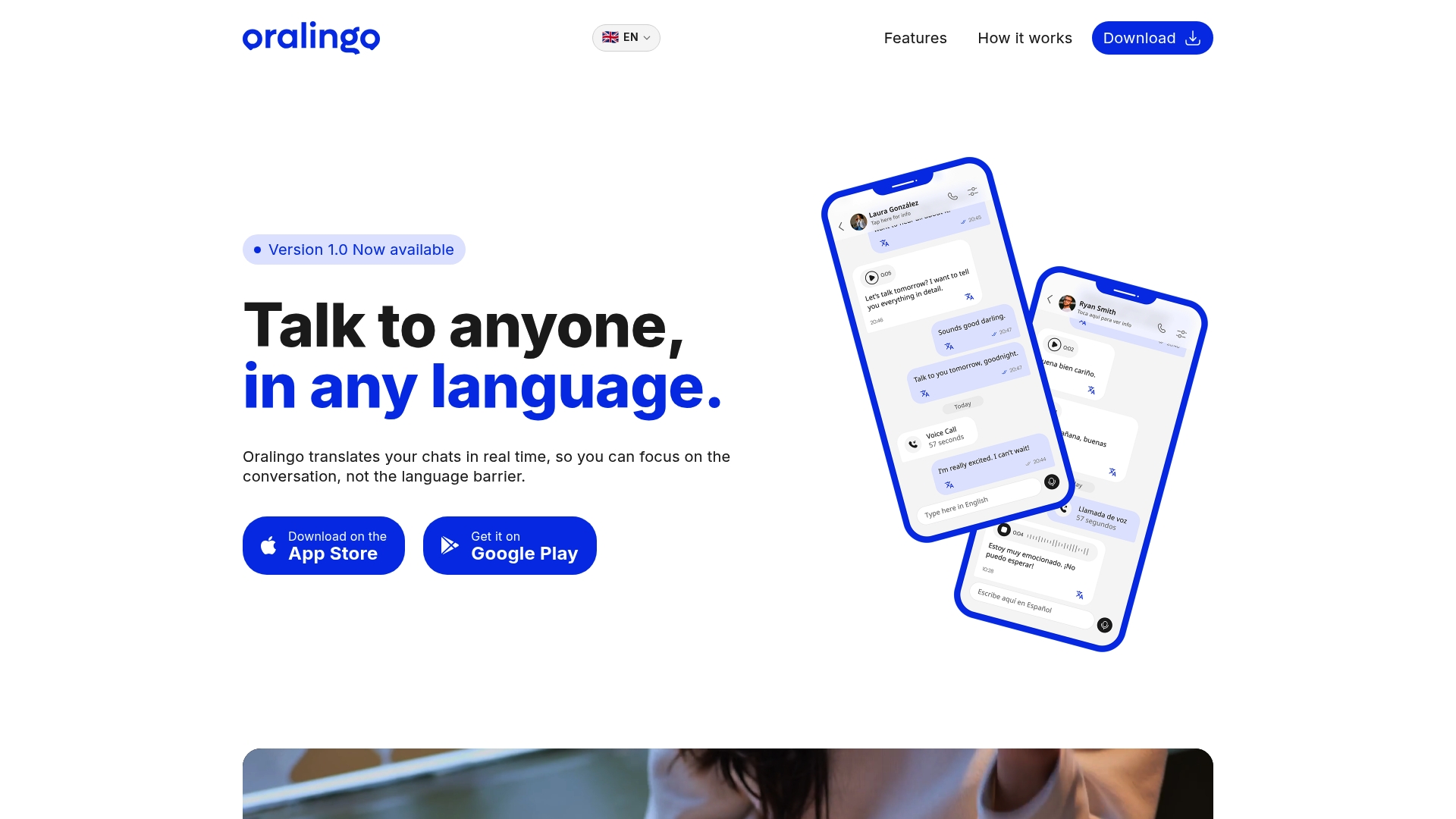
Oralingo translates messages before they ever appear on screen, so conversations read naturally instead of in a stiff, word-for-word way. Every conversation stays end-to-end encrypted, and the hands-free voice mode means you can talk instead of type when that's easier. Whether you're managing a WhatsApp thread with a private, on-device approach or texting a relative daily across a language gap, the setup takes minutes.
Visit the Oralingo app page to install it and start your first translated conversation today.
Where to Verify These Steps and Go Deeper
A few sources are worth bookmarking if you want to confirm settings or explore how translation actually works under the hood.
- Apple Support's Live Translation guide covers exact setup steps and supported languages for iPhone.
- Google Translate's help documentation explains how Tap to Translate handles copied text on Android.
- ML Kit's developer documentation details how on-device translation models work for anyone curious about the engineering side.
- The open-source SMS translation project on GitHub shows a real working example of automatic, offline SMS translation.
- How instant message translation works breaks down on-device versus cloud models in plain language.
Sources
- The best translation apps for Android and iOS — IONOS DigitalGuide
- ATA member directory — rapid-translate